Online Markdown Editor & Viewer: Write, Format, and Preview Instantly
Writing documentation, README files, or blog posts in plain text shouldn’t be a guessing game. While Markdown is an incredibly powerful language for formatting web content, visualizing how your final headers, lists, and links will look can be tricky without a proper interface.
Our free Markdown Editor & Viewer solves this problem by giving you a clean, distraction-free environment to compose and double-check your syntax. Whether you are drafting a technical guide, preparing a GitHub repository description, or just taking notes, this tool provides a seamless workflow without requiring any downloads or complex software installations.
How to Use the Markdown Editor & Viewer
- Open the Editor: When you load the page, click on the Editor tab to start typing your raw Markdown text. You can use standard symbols like
#for headings, for bold text, or-for bullet points. - Switch to Preview: To inspect your formatting, click the Preview tab. This instantly renders your text into a clean, readable web page layout.
- Make Quick Changes: If you spot a missing link or a broken list element, just jump back to the Editor tab, tweak the code, and check the Preview again.
- Copy and Save: Once your content looks exactly the way you want, select all your text from the Editor tab and paste it into your code editor, CMS, or repository.
Key Features Built for Content Creators
- Tab-Based Workspace: The clean layout separates your raw code from your rendered preview. This gives you plenty of screen space to write comfortably without a cluttered dual-pane window lagging on smaller screens.
- Instant HTML Rendering: The Preview tab acts as a real-time visualizer. It processes your text instantly, showing exactly how elements like headers, bullet lists, and hyperlinked text will display on a live website.
- 100% Client-Side Privacy: Your privacy matters. This tool operates entirely within your web browser. None of the text you paste or write is ever uploaded to a server, stored in a database, or tracked. Your sensitive documentation, content drafts, and notes remain completely private and secure on your local device.
- Zero Bloat, High Performance: There are no annoying pop-ups, multi-step setups, or hidden registration forms. It is built to load instantly and work smoothly, even on low-bandwidth connections.
Markdown Syntax Quick Reference Guide
To help you format your text faster without leaving this page, here is a quick reference table of the most common Markdown tags you can use right now:
| Formatting Type | What to Type in the Editor | Rendered Output Example |
| Heading 1 | # Welcome to My Notes | Large, prominent main title |
| Heading 2 | ## Why I Like It | Section sub-heading |
| Bold Text | **Markdown Editor** | Markdown Editor |
| Italic Text | *Live preview* | Live preview |
| Unordered List | - Easy to use | • Easy to use |
| Hyperlink | [My Website](https://example.com) | Clickable link text |
| Inline Code | `code` | Monospaced text block |
Practical Everyday Use Cases
- SEO Specialists: Ensure your web copies contain correct semantic hierarchies (H1, H2, H3 tags) before passing them over to development teams for implementation.
- Developers and Programmers: Quickly draft and review your
README.mdfiles before committing them to GitHub or GitLab. Check if your code blocks and technical lists line up correctly. - Technical Writers and Bloggers: Many modern static site generators (like Hugo, Jekyll, or Astro) and headless CMS platforms use Markdown. Use this tool to draft clean, semantic posts without messing up the underlying formatting tags.
- Students and Note-Takers: Keep your study notes perfectly structured. Using simple text-based markup keeps your hands on the keyboard, increasing your typing speed and helping you stay focused during lectures or meetings.
Example
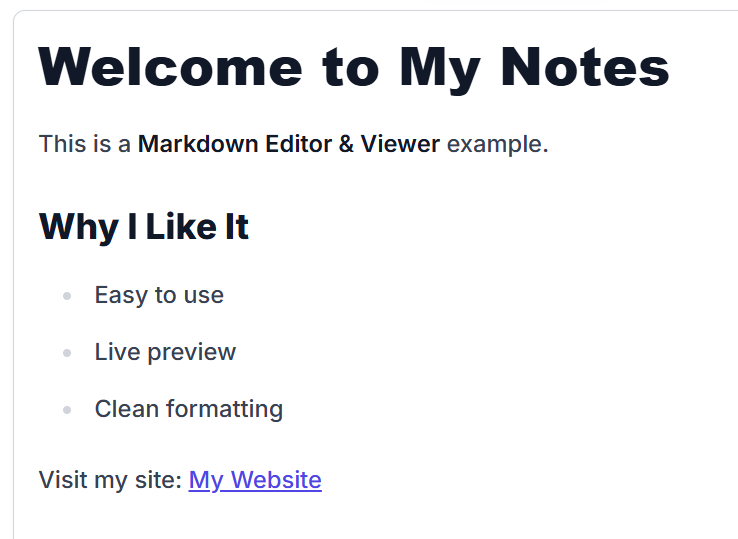
Input
# Welcome to My Notes

This is a **Markdown Editor & Viewer** example.

## Why I Like It
- Easy to use
- Live preview
- Clean formatting

Visit my site: [My Website](https://example.com)
Output
Why Use a Markdown Editor & Viewer?
- Instant preview: See exactly how your content will look before sharing or publishing
- Faster writing: Focus on words, not complex formatting menus
- Clean structure: Perfect headings, lists, quotes, and code blocks every time
- Beginner-friendly: Learn Markdown naturally while using it
Frequently Asked Questions (FAQs)
1. What is Markdown and why should I use it?
Markdown is a lightweight markup language that allows you to format plain text using simple symbols. It is widely used because it can be easily converted into semantic HTML. It helps you format headings, lists, links, and bold text quickly without relying on a bulky, slow visual rich-text editor.
2. Can I use this Markdown viewer on my smartphone?
Yes. The interface is completely responsive and optimized for mobile devices. You can easily paste text, write code, and toggle between the Editor and Preview tabs directly from your mobile browser while working on the go.
3. Does this tool save a copy of my notes on a server?
No. The tool processes all text completely on the client side inside your local browser. No data is ever transmitted to a web server or saved anywhere externally. If you refresh or close the browser tab, your text will be permanently cleared, ensuring absolute data security.
4. How do I add an image to my document using this editor?
To insert an image, use the standard Markdown image syntax: . When you switch over to the Preview tab, the tool will attempt to pull the image from the URL you provided and display it directly on your screen.
5. Why is my Markdown code not rendering properly in the preview?
The most common issue is missing blank lines or incorrect spacing. For example, Markdown lists and headers usually require a completely blank line above them to render correctly. Ensure there is a single space after your # symbols for headings and after your - or * symbols for bullet items.
6. Can I export my formatted file directly to HTML?
Currently, the tool acts as a rapid visualizer and text editor. To convert your work into an HTML webpage, you can easily copy your verified Markdown syntax from the Editor tab and drop it into any standard Markdown-to-HTML converter or content management system.
7. Does this tool support advanced Markdown extensions like tables or task lists?
This editor supports standard, core Markdown syntax perfectly to keep rendering speeds exceptionally fast. Common elements like headers, standard lists, links, images, blockquotes, and basic code blocks will render flawlessly.
8. Why should I use this web tool instead of a desktop markdown program?
Desktop software requires installation, system resources, and regular updates. This web utility provides a zero-setup, lightweight alternative that opens in less than a second on any device. It is perfect for fast editing, checking syntax on the fly, or working on secure devices where installing external apps is restricted.
- BBCode to HTML
- HTML Formatter
- Real Time HTML Editor
- HTML to JSON Converter
- HTML Entities to TEXT
- HTML to TSV Converter
- HTML Escape / Unescape
- Hyperlink Generator
- Base64 to HTML
- URL Slug Generator
- SVG Formatter
- HTML to Text
- BBCode Viewer
- Text to HTML Converter
- HTML to YAML Converter
- HTML Table Generator
- HTML to DOCX Converter
- HTML Viewer
- HTML to JSX Converter
- HTML Stripper