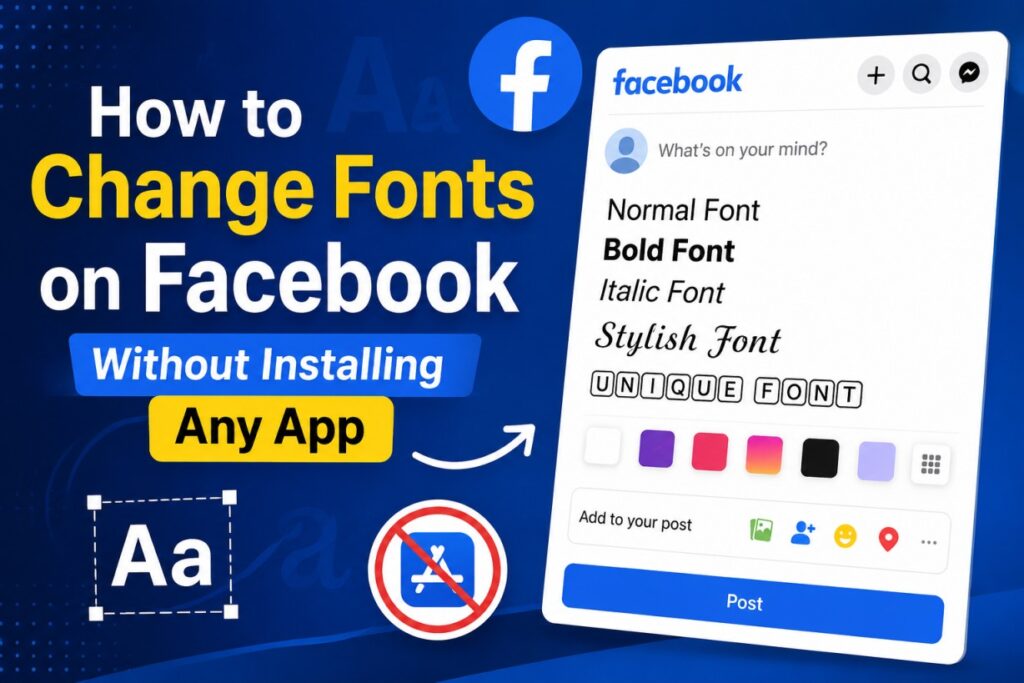
You’ve probably seen it: someone’s Facebook bio in elegant cursive, or a comment in bold letters that stands out from everything around it. Your first thought was likely, “Wait, Facebook doesn’t have a font option. How is that even possible?”
You’re right, it doesn’t. I went looking through every settings menu myself before writing this, and there’s no “change font” button anywhere.
But you don’t need one. I tested a handful of methods for this guide — including the lazy copy-paste approach most people use — and the good news is that the easiest one requires zero downloads. No app, no keyboard add-on, nothing installed on your phone. Here’s exactly how it works, and how to do it yourself in under a minute.
Why Facebook Doesn’t Let You Change Fonts Natively
Let’s clear up the confusion first. Facebook’s text box supports exactly one font, on every device, for every user. That’s not a bug or a missing feature — it’s just how the platform is built.
So how is styled text showing up in people’s posts and bios?
Here’s the trick: those aren’t fonts at all. They’re Unicode characters designed to look like styled letters. Unicode is the massive character system that every device, browser, and app agrees to read the same way — it’s what lets an emoji you send from an iPhone show up correctly on someone’s Android phone. Beyond letters and numbers, it also includes thousands of stylized symbols that mimic bold, italic, and script writing.
Take the letter “H.” A bold-style “H” isn’t the regular H with formatting applied to it — it’s a separate character (𝐇) that just happens to resemble a bold H. Because it’s treated as a character rather than a style, you can copy it and paste it anywhere text is accepted. Facebook doesn’t need to “support” fonts. It’s just displaying characters, the same way it displays 😀 or ♥.
If you want to see the full scope of what Unicode covers, the Unicode Consortium’s official site maintains the complete character standard — it’s a good rabbit hole if you’re curious how deep this goes.
Do You Need an App to Change Fonts on Facebook?
No. And here’s where I’d push back on a lot of the advice floating around.
There are two common routes people take:
Mobile apps or keyboard add-ons. These need to be downloaded, often want access to your keyboard or clipboard, and take up storage. I tried a couple while researching this piece — one buried the actual font tool behind three screens of ads before letting me use it.
Browser-based font generators. These live entirely online. Open a page, type your text, copy the result. Nothing installed, no permissions granted, no storage used. I tested this same approach on an iPhone and a Samsung Galaxy, and it behaved identically on both — because it’s not really a “Facebook feature” at all, it’s just text.
If your goal is a styled bio or a punchy comment, there’s no reason to install anything. A browser tab does the exact same job in a fraction of the time.
An Easy Online Solution
This is the kind of task a simple web tool is built for: type something, get instant styled versions, copy the one you like.
One example I used while writing this is the Facebook Font Generator. You type your text into the box, it generates a full list of styles immediately, and you copy whichever one fits. It runs entirely in the browser tab — nothing to install, nothing to configure.
Here’s what that actually looks like in practice.
How to Use the Facebook Font Generator
It’s a three-step process, and none of the steps take longer than a few seconds.
1. Type your text. Enter whatever you want to convert — your name, a birthday message, a short bio line — into the input box at the top of the page.
2. Choose your style. Scroll through the generated list. Your text gets converted instantly into dozens of variations, so you can compare a few side by side before settling on one.
3. Copy and paste. Click “Copy” next to the style you want, then paste it into Facebook — your post, a comment, your bio, or a message. Done.
That’s the whole workflow. No account, no waiting screen, nothing to approve.
What These Styles Actually Look Like
Reading about “bold” and “cursive” only gets you so far — seeing them side by side makes the difference obvious. Here’s the same phrase run through five different styles:
| Style | Example |
|---|---|
| Regular | Happy Birthday |
| Bold | 𝐇𝐚𝐩𝐩𝐲 𝐁𝐢𝐫𝐭𝐡𝐝𝐚𝐲 |
| Italic | 𝐻𝑎𝑝𝑝𝑦 𝐵𝑖𝑟𝑡ℎ𝑑𝑎𝑦 |
| Cursive | 𝓗𝓪𝓹𝓹𝔂 𝓑𝓲𝓻𝓽𝓱𝓭𝓪𝔂 |
| Sans Serif | 𝖧𝖺𝗉𝗉𝗒 𝖡𝗂𝗋𝗍𝗁𝖽𝖺𝗒 |
| Bubble | Ⓗⓐⓟⓟⓨ Ⓑⓘⓡⓣⓗⓓⓐⓨ |
Same nine words, five completely different moods. Bold shouts. Cursive feels personal. Bubble text feels like it belongs in a group chat, not a business announcement.
Popular Facebook Font Styles
Here’s a closer look at when each style actually earns its place in a post.
Cursive This is the one people reach for when they want something to feel personal — an anniversary post, a thank-you message, or a bio line that feels a little more “you” than the default font.
Bold Use this when you want something to be impossible to skim past. It works well for the first line of a longer post, or a short phrase you want to land like a headline.
Italics The subtlest of the group. It adds a touch of emphasis or a slightly more thoughtful tone without shouting. Good for a quote or a phrase you want to set apart, just slightly.
Sans Serif Clean and modern. It reads almost like Facebook’s default font at first glance, but different enough that people notice. A safe choice if you want something styled without it looking like a party invitation.
Bubble Text Playful, a little chaotic, and clearly not meant to be taken seriously. Perfect for a joke in the comments or a lighthearted caption — less so for anything formal.
Where to Use Styled Fonts on Facebook
A few places where this actually adds value, based on what I’ve seen work:
- Bio / About section — a short tagline in cursive or sans serif makes your profile feel intentional.
- Status updates — bold works well for a headline within a longer post.
- Comments — a styled reply stands out in a thread full of plain text.
- Page or group names — a distinctive name catches the eye in search results.
- Messenger messages — a small personal touch for close friends or family.
- Marketplace listings — a bold title can pull attention in a crowded category.
Tips for Using Fancy Fonts Without Overdoing It
A little styling goes further than a lot of it.
Keep it short. A styled name or a one-line tagline works. An entire paragraph in bubble text starts to hurt to read.
Don’t style everything. If every word in your caption is bold, none of it stands out anymore. Pick the one phrase that matters.
Keep a plain-text version of anything important. Phone numbers, addresses, and event details should stay in normal text. Not every device renders every Unicode character the same way, and you don’t want critical information getting garbled.
Think about who’s reading it. Screen readers, which some people depend on to browse Facebook, often can’t interpret stylized Unicode characters the way they interpret normal letters. If the information matters to everyone, keep it plain. Save the styling for the fun parts.
Troubleshooting Common Issues
The font shows up as boxes or question marks. That usually means the device you’re viewing it on doesn’t have support for that specific character set. Try a different style — some are far more widely supported than others.
The text won’t paste correctly. Copy the styled version directly from the generator. Retyping it manually won’t recreate the actual character.
It looks different on another platform. Some apps filter or block certain Unicode ranges for their own formatting or security reasons. If a style works on Facebook but breaks somewhere else, that’s almost always why.
Frequently Asked Questions
Is it safe to use font generators for Facebook?
Yes — as long as the tool doesn’t ask for account access or unusual permissions. Since it’s only generating text characters, copying and pasting them carries no risk.
Will changing fonts get my account flagged or banned?
No. Styled Unicode text is just a different character set, not a violation of Facebook’s terms.
Can I use these fonts on Instagram or Twitter too?
Yes. Since the styling comes from Unicode itself, not a Facebook-specific feature, it works anywhere you can paste text — Instagram bios, X posts, even regular text messages.
Does it work the same on the app and on Facebook.com?
In my testing, yes. Since it’s just text, it renders identically whether you’re on the mobile app or the desktop site.
Is the Facebook Font Generator free to use?
Yes — tools like this are typically free, with no account or sign-up required.
Wrapping Up
Getting styled fonts on Facebook comes down to three steps: type, choose, paste. No app, no permissions, no settings menu to dig through.
Next time you want your bio or a comment to stand out, you already know exactly how it’s done — and you can do it yourself in under a minute.