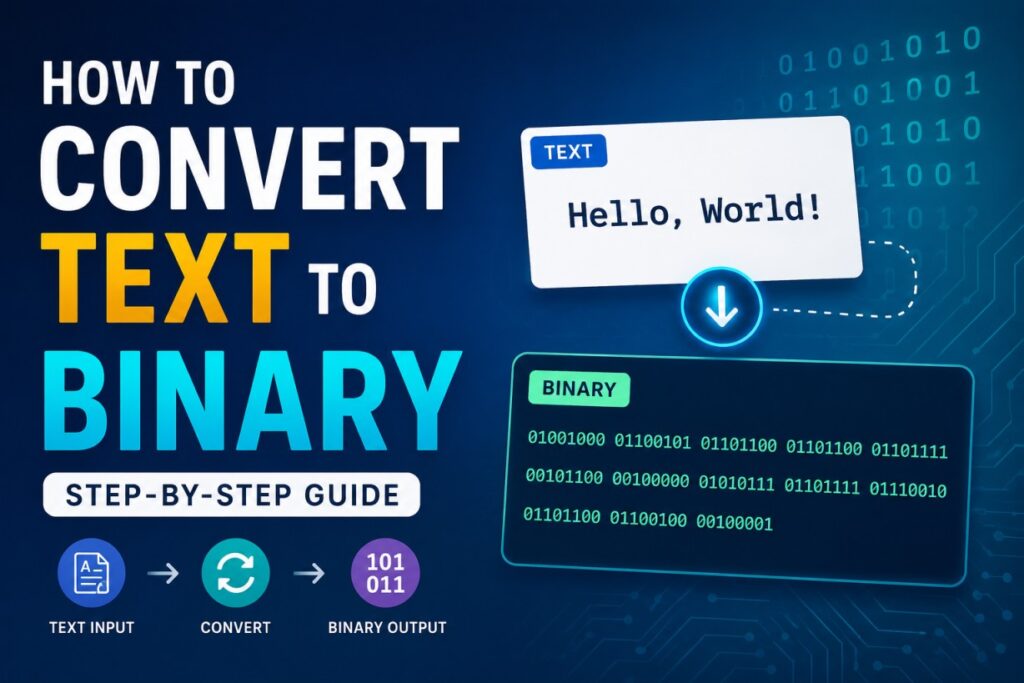
Every time you type a message, click a link, or save a file, your computer is doing something you never see. It’s turning your words into a long string of 0s and 1s. That string is binary code, and it’s the only language a computer actually understands.
If you’ve ever wondered how “Hello” turns into something like 01001000 01100101 01101100 01101100 01101111, this guide will walk you through it. You’ll learn what binary code actually is, how text gets converted into it, how to do the conversion by hand, and how to do it instantly when you don’t want to do the math yourself.
No jargon overload. Just the logic, step by step.
What Is Binary Code?
Binary is a number system with only two digits: 0 and 1.
Compare that to the number system you use every day, called decimal, which has ten digits (0 through 9). Binary works the same way, just with fewer symbols to work with.
Computers use binary because of how they’re built. Inside every computer are billions of tiny switches called transistors. Each one can only be in one of two states: on or off. Electricity flowing, or not flowing. That’s it.
So engineers assigned a number to each state:
- 1 means “on”
- 0 means “off”
Every piece of data on your computer, from a text message to a movie file, is ultimately a massive sequence of these on/off signals. Binary is just the human-readable way of representing that.
A single binary digit (a 0 or a 1) is called a bit. Group eight bits together, and you get a byte. Most modern text encoding uses one byte per character, which is why you’ll often see binary text written in chunks of eight digits, like 01001000.
How Text Becomes Binary: The Role of ASCII and Unicode
Here’s the part that trips people up: binary numbers on their own don’t mean “H” or “i” or “!” They’re just numbers. Something has to connect a number to a specific character.
That “something” is a character encoding standard, and the most common one for basic English text is ASCII (American Standard Code for Information Interchange).
ASCII assigns a unique number, from 0 to 127, to every letter, digit, and common symbol on a standard keyboard. For example:
| Character | ASCII (Decimal) | Binary |
|---|---|---|
| A | 65 | 01000001 |
| a | 97 | 01100001 |
| 0 | 48 | 00110000 |
| ! | 33 | 00100001 |
| (space) | 32 | 00100000 |
Notice that “A” and “a” have different numbers. Binary is case-sensitive because ASCII treats uppercase and lowercase letters as completely separate characters, even though they look related to us.
For anything beyond basic English, like emojis, accented letters, or characters from other alphabets, ASCII runs out of room. That’s where Unicode (usually implemented as UTF-8) comes in. Unicode extends the same basic idea, assigning a number to every character, but covers a much larger range so it can represent virtually any symbol used anywhere in the world.
For most everyday text, though, ASCII is the standard you’ll be working with, and it’s what we’ll use for the examples below.
How to Convert Text to Binary Manually (Step-by-Step)
Let’s convert the word “Hi” into binary by hand. It’s easier than it sounds once you break it into steps.
Step 1: Take the first character. We’re starting with “H”.
Step 2: Find its ASCII decimal value. Looking it up, “H” corresponds to 72.
Step 3: Convert that decimal number into binary. 72 in binary is 01001000.
If you want to understand how that conversion happens: binary works in powers of 2 (1, 2, 4, 8, 16, 32, 64, 128). You figure out which of these values add up to your number. 72 = 64 + 8, so you place a 1 in the 64 and 8 positions, and 0 everywhere else across an 8-bit byte:
128  64  32  16  8  4  2  1
 0    1   0   0  1  0  0  0   = 72
Step 4: Repeat for the next character. “i” (lowercase) has an ASCII value of 105, which converts to 01101001.
Step 5: Combine the results, separated by spaces. So “Hi” in binary becomes:
01001000 01101001
Let’s try a slightly longer example: the word “Hello”.
| Character | Decimal | Binary |
|---|---|---|
| H | 72 | 01001000 |
| e | 101 | 01100101 |
| l | 108 | 01101100 |
| l | 108 | 01101100 |
| o | 111 | 01101111 |
Put together:
01001000 01100101 01101100 01101100 01101111
That’s the entire process. It’s repetitive, but not complicated. The tedious part is doing the decimal-to-binary math for every single character, especially once you’re converting a full sentence instead of a five-letter word.
The Fast Way: Using an Online Text to Binary Converter
Manually converting a word or two is a great way to actually understand what’s happening under the hood. But if you’re converting a full sentence, a paragraph, or an entire message, doing this by hand becomes slow and easy to mess up. One misplaced digit and the whole byte is wrong.
This is exactly the kind of repetitive lookup-and-convert task that’s better handed off to a tool. A text to binary converter does the same ASCII lookup and decimal-to-binary math you just learned, except it applies it instantly to any amount of text, without you having to reference a table or double check your arithmetic.
How to Use a Text to Binary Converter
Using one is straightforward:
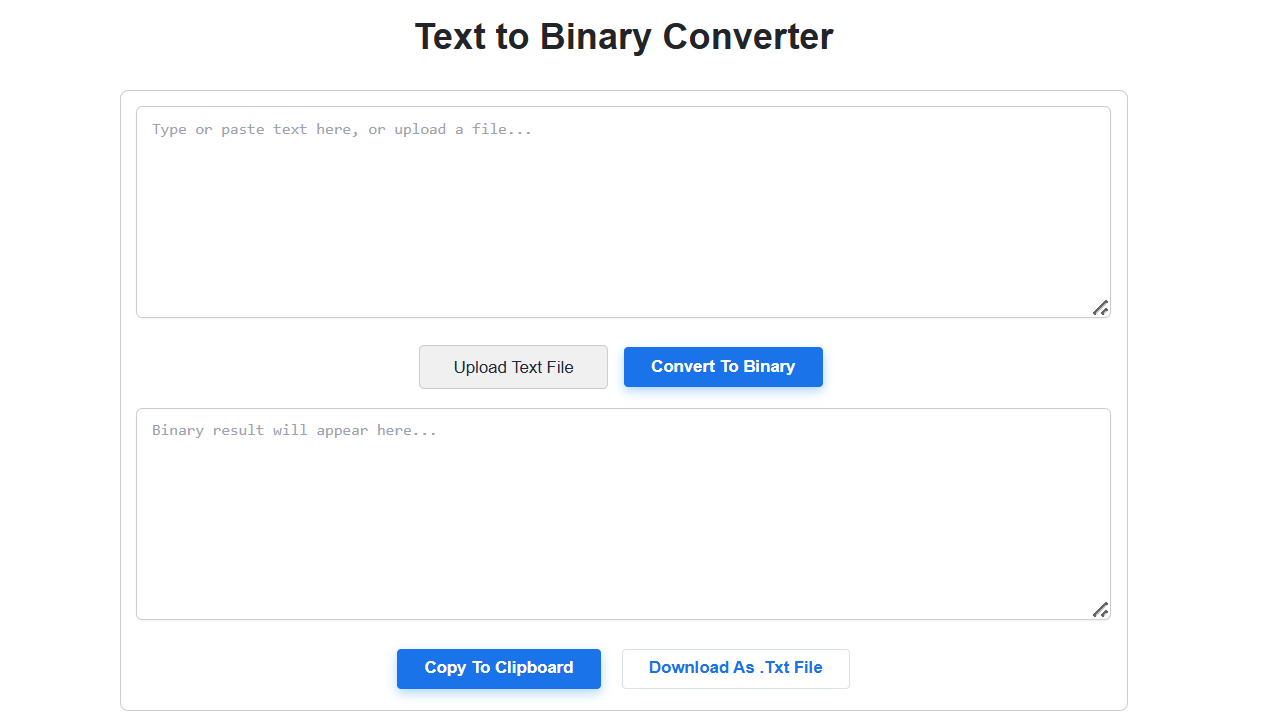
- Enter your text. Type or paste the text you want to convert into the input box. If you’re converting content from a file rather than typing it out, you can usually upload a
.txtfile directly instead. - Click convert. Hit the “Convert to Binary” button, and the tool processes your text using the same character-by-character logic covered above.
- Get your result. The binary output appears in the results box below, with each byte typically separated by a space for readability, just like in our manual examples.
- Copy or save it. From there, you can copy the result to your clipboard to paste elsewhere, or download it as a
.txtfile if you want to keep it for later.
That’s it. What takes several minutes of manual lookup and calculation for a sentence takes a couple of seconds this way.
Common Mistakes When Converting Text to Binary
A few things trip people up when they’re learning this, whether they’re converting by hand or double-checking a tool’s output:
Forgetting to separate bytes. Without spaces between each 8-digit group, you end up with one long, unreadable string of digits, and it becomes nearly impossible to tell where one character ends and the next begins.
Ignoring case sensitivity. “T” and “t” are different characters with different binary values. If your output doesn’t match what you expected, check whether you typed the capitalization you intended.
Mixing up the decimal-to-binary math. It’s easy to misplace a digit when converting decimal numbers to binary by hand, especially with larger numbers. Double-checking against an ASCII table helps catch this.
Assuming all characters use the same encoding. Standard English letters, numbers, and punctuation map cleanly to ASCII. Emojis and many non-English characters require Unicode, which uses more bits per character. If your output looks unexpectedly long, this is usually why.
Real-World Uses of Text-to-Binary Conversion
Understanding this isn’t just a trivia exercise. It shows up in a few genuinely useful contexts:
- Learning computer science fundamentals. Binary is one of the first concepts taught in programming and computer engineering courses, because everything else builds on it.
- Digital electronics. If you’re studying how circuits, logic gates, or microprocessors work, binary is the foundation.
- Networking and data transmission. Data sent between devices is ultimately transmitted as binary signals, so understanding the concept helps make sense of how information moves across networks.
- Creative projects. Binary code shows up in tattoos, jewelry, and puzzles, where people encode a name, date, or short phrase as a personal or hidden message.
Bonus: Text to Other Number Systems
Binary isn’t the only alternative number system used in computing. Two others come up often:
- Hexadecimal (base 16): Uses digits 0–9 and letters A–F. It’s commonly used in programming because it’s a more compact way to represent binary values (one hex digit represents four binary digits).
- Octal (base 8): Uses digits 0–7. It’s less common today but still shows up in certain programming and Unix file permission contexts.
The same core idea applies to all of them: each character gets mapped to a number, and that number is expressed in a different base.
Frequently Asked Questions
Is binary code hard to learn?
Not really. The concept itself, mapping characters to numbers and expressing those numbers in base 2, is simple. What takes practice is doing the decimal-to-binary conversion quickly by hand.
How do I convert binary back into text?
You reverse the process. Split the binary string into 8-digit bytes, convert each byte back into its decimal ASCII value, then match that number to its corresponding character.
Does binary code work for emojis and special characters?
Yes, but not through standard ASCII. Emojis and many special characters require Unicode (typically UTF-8), which uses more bits per character than basic ASCII does.
What’s the difference between ASCII and binary?
ASCII is a character encoding standard that assigns a number to each character. Binary is the number system used to express that number. They work together: ASCII decides what number a character maps to, and binary is how that number is written.
Can I convert a full sentence to binary at once?
Yes. The process is identical to converting a single word, just repeated for every character in the sentence, including spaces and punctuation, which have their own ASCII values too.
Wrapping Up
Binary code isn’t magic. It’s a straightforward system where every character you type gets matched to a number, and that number gets written using only 0s and 1s, because that’s the only “language” a computer’s hardware can physically understand.
Working through a word or two by hand is worth doing at least once. It makes the concept click in a way that just reading about it doesn’t. But once you get the idea, there’s no need to keep doing the math manually for anything longer. Try converting your own name or a short message and see what it looks like in binary.