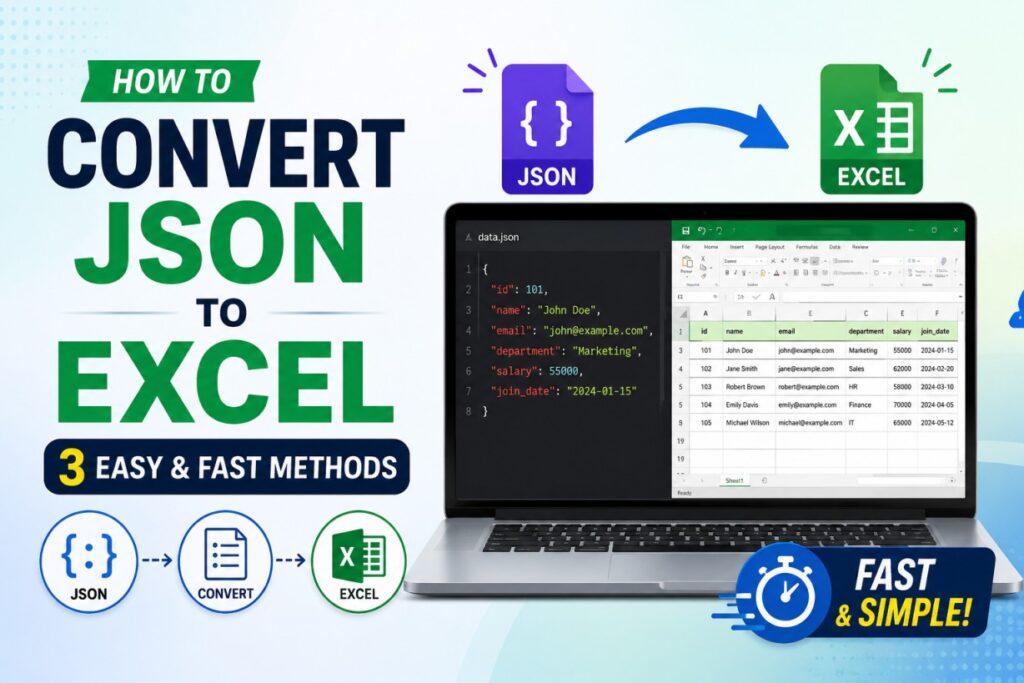
JSON is highly efficient for storing and transferring data across web applications, but its nested text format makes it difficult for humans to read or analyze. For data filtering, reporting, and building charts, a tabular spreadsheet like Excel is much more practical.
Converting JSON to Excel maps your data fields directly into clean rows and columns.
Example:
Instead of trying to read through this raw JSON text:
JSON
[
  {"id": 101, "product": "Wireless Mouse", "price": 25.99, "stock": 150},
  {"id": 102, "product": "Mechanical Keyboard", "price": 89.99, "stock": 45}
]
A proper conversion automatically turns the keys (id, product, price, stock) into organized Excel column headers, placing the data neatly underneath them.
Method 1: Using a Free Online Converter
The fastest way to handle a quick conversion without installing software or running code is to use a web-based utility.
When using online tools, data privacy is a critical factor. Many traditional converters upload your raw files to external servers for processing. This presents a massive security risk if your dataset contains confidential business metrics, client details, or proprietary records.
To keep your information completely safe, use a client-side tool like this web-based JSON to Excel converter. It parses and converts the data entirely within your browser’s RAM. Because the operation runs locally on your machine, your data never leaves your device or touches an external server.
Step-by-Step Instructions:
- Load the tool: Open the browser-based converter.
- Input your data: Paste your raw JSON array into the input box, or click the upload button to select your
.jsonfile. - Convert: Click the conversion button to map the data keys into a spreadsheet format.
- Save: Download the generated
.xlsxfile instantly to your computer.
Method 2: The Native Offline Way (Using Microsoft Excel Power Query)
If you are dealing with large datasets or strict corporate privacy policies, uploading files online might not be an option. You can convert JSON natively inside Microsoft Excel using a built-in data transformation tool called Power Query.
This method is entirely offline and handles complex, nested data structures well.
Step-by-Step Instructions:
- Open Excel: Launch Microsoft Excel and create a blank workbook.
- Locate Data Import: Click on the Data tab in the top menu ribbon.
- Select JSON Source: Click on Get Data > From File > From JSON.
- Import Your File: Browse your computer, select your
.jsonfile, and click Import. - Flatten the Data: The Power Query Editor window will open. Excel will automatically try to parse the data. If you see a list of records, click the Into Table button. If your data contains nested columns, click the small Expand icon (two arrows pointing sideways) in the column header to separate the keys into individual columns.
- Load to Spreadsheet: Once the preview looks correct, click Close & Load in the top-left corner.
Excel will immediately format and populate your spreadsheet rows with the converted data.
Method 3: The Developer’s Way (Using Python and Pandas)
For developers, data analysts, or anyone looking to automate repetitive tasks, converting files manually becomes inefficient. If you need to convert multiple JSON files at once or integrate the process into an automated workflow, Python is the best option.
Even if you are new to coding, you can set this up quickly by following these steps:
1.Install the required libraries:1 minute.
First, you need to install Pandas (for handling the data structures) and openpyxl (which allows Python to write Excel files). Open your terminal or command prompt and run this command:
Bash
pip install pandas openpyxl
2.Organize your folder:30 seconds.
Create a new folder on your computer. Inside this folder, place the .json file you want to convert and name it dataset.json.
3.Create the Python script:2 minutes.
In the same folder, create a new text file, name it convert.py, and open it in any text editor. Paste the following code snippet inside it and save the file:
Python
import pandas as pd

# Load the JSON data from your local file
df = pd.read_json('dataset.json')

# Export the formatted data directly into an Excel sheet
df.to_excel('output.xlsx', index=False)
4.Run the script:30 seconds.
Go back to your terminal, navigate to your folder, and run the script by typing:
Bash
python convert.py
The script will instantly process the text file and generate a brand-new output.xlsx file in the exact same folder, mapping all keys into clean columns.
How to Handle Complex or Nested JSON Data
Standard JSON files are flat, meaning each key maps to a single value. However, real-world data is often “nested”—meaning a key contains another object or an entire list of values inside it.
Example of Nested JSON:
JSON
[
  {
    "id": 101,
    "product": "Wireless Mouse",
    "specs": { "brand": "Logitech", "color": "Black" }
  }
]
If you convert this directly without flattening it, Excel won’t know what to do with the specs field. It will either throw an error, leave the cell blank, or output a generic [Record] label instead of the actual data.
Here is how to properly handle nested structures depending on the method you choose:
1. In the Web Converter Tool
Most robust, browser-based online tools handle this automatically behind the scenes. The parser flattens the nested structures by creating combined column headers using dot notation. In the example above, the tool will automatically output four clean columns: id, product, specs.brand, and specs.color.
2. In Microsoft Excel (Power Query)
If you are importing the file offline through Excel, you have complete control over how the nested data expands:
- When you import the file into the Power Query Editor, look at the column containing the nested records (it will show
[Record]or[List]in the rows). - Click the small Expand icon (two arrows pointing away from each other) located on the right side of that specific column header.
- A dropdown menu will appear showing all the sub-keys available (e.g.,
brandandcolor). - Check the boxes for the fields you want to display, uncheck “Use original column name as prefix” if you want cleaner headers, and click OK.
3. In Python (Using Pandas)
If you are running the automation script, standard pd.read_json() might fail to split nested objects into individual rows. Instead, you need to use a dedicated function called json_normalize.
Here is how to update your script to handle complex data structures:
Python
import pandas as pd
import json

# Load the raw file
with open('dataset.json') as f:
    data = json.load(f)

# Flatten the nested structure automatically
df = pd.json_normalize(data)

# Save to Excel
df.to_excel('output.xlsx', index=False)
This script unpacks the internal data objects and maps them to clear, separate columns before creating the spreadsheet.
Conclusion: Choosing the Right Method
Choosing the right way to convert JSON to Excel depends entirely on your dataset size, technical comfort level, and data privacy requirements.
| Method | Best For | Technical Level | Data Privacy |
|---|---|---|---|
| Online Web Tool | Quick, one-off file conversions | Beginner (No setup) | Safe if processed client-side |
| Excel Power Query | Large files, deep analysis offline | Intermediate (Built-in tool) | Completely private (Runs locally) |
| Python & Pandas | Bulk files, repetitive automation | Advanced (Requires coding) | Completely private (Runs locally) |
By matching the method to your specific workflow, you can bypass the friction of reading raw data streams and get straight to organizing, filtering, and reporting your data efficiently.