You built your website, published content, and started getting some traffic. Then you look at your URLs and realize they’re a mess.
Maybe they look like this:
yoursite.com/p=1482 yoursite.com/blog/article-title-here-july-2019-v2-final yoursite.com/products/item_00392_red_large_NEW
Not exactly inspiring. And definitely not helping your SEO.
The good news: you can fix bad URL slugs. The bad news: if you do it wrong, you can wipe out months of Google rankings overnight.
This guide walks you through everything — what makes a slug bad, how Google reacts when URLs change, the safest way to update them, and what to do after.
What Is a URL Slug, Exactly?
The slug is the last part of a URL — the piece that identifies a specific page.
In yoursite.com/blog/how-to-bake-bread, the slug is how-to-bake-bread.
It’s short, descriptive, and tells both Google and your readers what the page is about before they even click. When slugs are clean, URLs work for you. When they’re not, they work against you.
Why URL Slugs Matter for SEO (and Real People)
Google uses URLs as a signal — one of many — to understand what a page covers. A slug packed with relevant words gives search engines a small but real advantage in categorizing your content.
But slugs matter even more for actual humans. When someone sees a link in search results, on social media, or in an email, the URL is the first thing they judge. A clean, readable slug builds trust. A messy one raises suspicion.
Here’s the difference:
| Messy URL | Clean URL |
|---|---|
site.com/p=992 | site.com/blog/beginner-yoga-poses |
site.com/cat/item_492_blk | site.com/products/black-running-shoes |
site.com/post-july-14-2021-tips-seo-2 | site.com/blog/seo-tips-beginners |
The cleaner versions are easier to read, remember, and share. And they give search engines more useful context.
What Makes a URL Slug “Bad”?
Not all bad slugs are created equal. Here are the most common problems:
Auto-generated IDs Platforms like older WordPress installs sometimes default to ?p=123. These mean nothing to Google or readers.
Dates that make content look old A slug like seo-tips-march-2019 signals outdated content — even if you’ve updated the article completely.
Stop words that add length without value Words like “the,” “a,” “an,” “for,” and “with” bloat slugs without helping SEO. the-best-guide-to-writing-for-beginners becomes guide-writing-beginners.
Underscores instead of hyphens Google treats hyphens as word separators. It treats underscores as connectors. So black_shoes reads as one word, not two. Always use hyphens.
Uppercase letters URLs are case-sensitive on most servers. Site.com/About and site.com/about can be treated as two separate pages, creating duplicate content issues.
Keyword stuffing best-seo-tips-seo-guide-seo-2024 is spam-like and looks bad in search results.
Vague or generic slugs /page1, /new-post, /untitled — these tell nobody anything about the content.
Common Situations Where Slugs Need Changing
You’re not alone if you’re sitting on a pile of problematic URLs. It happens for several common reasons:
- You migrated from one CMS to another (WordPress to Webflow, for example)
- Your site’s early structure was set up without an SEO plan
- You inherited an old website from someone else
- Your platform auto-generated slugs from titles that were never edited
- You renamed products or services and want URLs to match
All of these are fixable. The key is doing it carefully.
Will Changing a URL Slug Hurt Your Rankings?
Honestly? It can — but only if you do it wrong.
When you change a URL, Google sees the old page disappear and a new one appear. If you’ve built backlinks, gotten social shares, or earned any ranking authority on the old URL, all of that is attached to the old address.
Without a proper redirect, that authority vanishes. Your rankings can drop significantly. Your traffic can fall overnight.
But with the right setup? The transition is smooth, and your rankings usually recover — often fully — within a few weeks.
How Google Handles Changed URLs
Google is pretty good at following URL changes — as long as you give it the right signal.
When you set up a 301 redirect from the old URL to the new one, you’re telling Google: “This page has permanently moved. Transfer everything you know about the old address to this new one.”
Google follows the redirect, updates its index, and passes most of the ranking power to the new URL. It takes time — usually a few weeks — but it works.
A 302 redirect (temporary) tells Google the move is temporary. Google keeps the old URL in its index and doesn’t fully transfer authority. For permanent slug changes, always use 301.
The Safest Way to Update a URL Slug
Follow this process in order. Skipping steps is where things go wrong.
Step 1: Audit your current slugs
Before touching anything, document every URL you’re considering changing. Use a tool like Screaming Frog or Google Search Console to pull a full list of your indexed URLs.
Note which ones:
- Have existing backlinks
- Are getting organic traffic
- Have been indexed by Google (check Search Console)
The more traffic and links a URL has, the more carefully you need to handle the change.
Step 2: Decide which slugs actually need changing
Not every bad slug is worth fixing. See the decision table below.
| Situation | Change it? |
|---|---|
| URL has no backlinks and zero organic traffic | Yes — low risk |
| URL has traffic but zero backlinks | Yes — with a 301 redirect |
| URL has both traffic and strong backlinks | Only if necessary — high risk |
| URL is on a page indexed less than 2 weeks ago | Yes — quick fix before Google caches it deeply |
| URL is on your homepage | Almost never |
| URL is a core category page with lots of internal links pointing to it | Proceed carefully — update all internal links too |
Step 3: Create the new slug
Keep it short, lowercase, and hyphen-separated. Include your primary keyword. Drop stop words. Aim for 3–5 words.
If you need help formatting a slug correctly, an online URL Slug Generator can instantly convert any page title into a clean, SEO-friendly format.
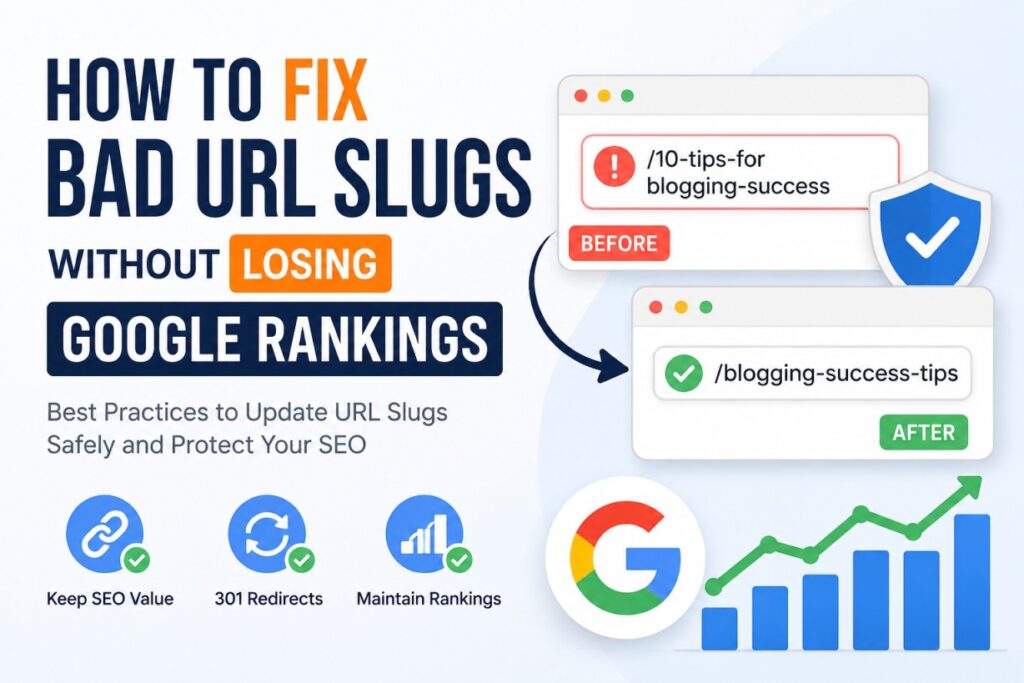
Before and after examples:
| Page | Old slug | New slug |
|---|---|---|
| Blog post | tips-for-writing-better-blog-posts-in-2019 | blog-writing-tips |
| Product page | item_492_red_large_NEW | red-large-cotton-t-shirt |
| Category page | the-category-of-shoes-for-women | womens-shoes |
| Local business page | page-about-plumbing-services-chicago-il-area | chicago-plumbing-services |
| News article | breaking-article-mayor-announcement-july-4th | mayor-infrastructure-announcement |
Step 4: Set up a 301 redirect
This is the most important step. Before you publish the new slug, create a redirect from the old URL to the new one.
In WordPress, use a plugin like Redirection or Rank Math’s redirect manager.
In Apache, add this to your .htaccess:
Redirect 301 /old-slug https://yoursite.com/new-slug
In Nginx, add to your server block:
rewrite ^/old-slug$ /new-slug permanent;
In Shopify or Webflow, both platforms have built-in redirect managers under settings.
Test the redirect immediately using a tool like httpstatus.io to confirm it returns a 301 and not a 404.
Step 5: Update all internal links
Your 301 redirect takes care of external backlinks and Google. But internal links — links within your own site — should point directly to the new URL. Relying on redirects for internal links creates unnecessary hops and slows down page crawling.
Do a site-wide search for any pages, menus, or footer links pointing to the old slug and update them manually.
Step 6: Update your sitemap
Regenerate or manually update your XML sitemap to include the new URL and remove the old one. Then submit the updated sitemap in Google Search Console.
Step 7: Request indexing for the new URL
In Google Search Console, use the URL Inspection Tool on the new URL and click “Request Indexing.” This speeds up how quickly Google picks up the change.
What Happens If You Forget the Redirect?
Without a 301 redirect, here’s what happens:
- The old URL returns a 404 (page not found) error
- Google removes it from its index
- Any backlinks pointing to the old URL send visitors to a dead page
- All the ranking authority built on the old URL is gone
In competitive niches, a forgotten redirect on a high-traffic page can cost significant ranking drops within days. Always set the redirect before making the URL change live.
What About Canonical Tags?
If you use canonical tags on your pages (<link rel="canonical" href="..."/>), make sure they point to the new URL after a slug change.
A canonical tag that still references the old (now redirected) URL creates a conflicting signal. Google might ignore the canonical or get confused about which URL to prefer. Update canonicals alongside the slug change.
When NOT to Change a URL Slug
Not every imperfect slug is worth the risk. Here are situations where you should leave the URL alone:
- The page ranks in the top 3 for a competitive keyword and gets consistent traffic
- The page has a high number of external backlinks from authoritative sites
- The “bad” slug still makes reasonable sense and doesn’t cause any confusion
- You can’t implement proper 301 redirects on your hosting setup
- The page was published very recently but hasn’t been indexed yet (wait — it’ll become indexed soon with the right slug)
The principle is simple: if fixing the slug creates more risk than leaving it, leave it.
How to Monitor Rankings After Changing a URL
After changing a slug, set up monitoring so you catch problems early.
What to watch:
- Google Search Console — check for 404 errors, index coverage drops, and click/impression data on the new URL
- Rankings — use a rank tracker to watch your target keywords for 2–4 weeks
- Traffic — compare organic sessions week-over-week in Google Analytics
Some ranking fluctuation in the first 1–3 weeks is normal. Google is updating its index and reassessing the page. If rankings haven’t stabilized after 4–6 weeks, investigate whether the redirect is working correctly.
Common Mistakes to Avoid
| Mistake | What happens | Fix |
|---|---|---|
| Forgetting the 301 redirect | Old URL returns 404; rankings drop | Always redirect before going live |
| Using 302 instead of 301 | Authority isn’t fully passed | Change to 301 for permanent moves |
| Changing the slug but not updating canonical | Conflicting signals for Google | Update canonical to new URL |
| Not updating internal links | Redirect chains slow crawls | Update all internal links to new URL |
| Changing too many URLs at once | Hard to diagnose which change caused problems | Batch changes in small groups |
| Changing slugs without checking backlinks | High-authority links go to a dead page | Check backlinks first in Ahrefs or Search Console |
| Choosing a new slug that’s also vague | You fix one problem and create another | Research the keyword before finalizing |
URL Slug Best Practices for Future Pages
Once you’ve fixed your existing slugs, protect your future pages from the same problems.
- Use hyphens between words, never underscores or spaces
- Keep it lowercase — all lowercase, always
- Be descriptive — the slug should reflect the page topic clearly
- Target one primary keyword — include your main keyword naturally
- Cut stop words — remove “a,” “the,” “for,” “and,” “in,” unless they’re essential to meaning
- Keep it short — 3 to 5 words is the sweet spot; rarely go beyond 6
- Avoid dates in evergreen content — they age your content even when you update it
- Never change a slug after a page has been indexed without following the full redirect process
Pre-Change Checklist
Use this before changing any URL slug:
- [ ] Checked current organic traffic for the old URL in Google Analytics
- [ ] Checked for existing backlinks using Ahrefs, Moz, or Search Console
- [ ] Confirmed the page is (or isn’t) currently indexed in Google
- [ ] Chosen a new slug that’s short, descriptive, and keyword-relevant
- [ ] Created a 301 redirect from old URL → new URL
- [ ] Tested the redirect (confirms 301, not 302 or 404)
- [ ] Updated all internal links to point to the new URL
- [ ] Updated canonical tag to reference new URL
- [ ] Updated XML sitemap and submitted to Search Console
- [ ] Requested indexing for the new URL via URL Inspection Tool
- [ ] Set up monitoring in Search Console and rank tracker
Frequently Asked Questions
1. How long does it take for Google to update rankings after a URL slug change?
It varies. For smaller sites with fast crawl rates, you might see the new URL indexed within days. For larger sites, it can take 2–6 weeks. During this window, rankings may fluctuate — this is normal. Don’t panic and make more changes. Set up monitoring and wait for things to stabilize before drawing conclusions.
2. Will a 301 redirect pass 100% of my ranking authority to the new URL?
Not exactly 100%, but very close. Google has historically said 301 redirects pass “full” PageRank, and while some small amount of signal may be diluted across redirect hops, the practical impact is minimal for a single redirect. The bigger risk is forgetting the redirect entirely, not losing a tiny fraction to redirection.
3. Can I change multiple URL slugs at the same time?
You can, but it’s riskier than doing them in batches. If you change 50 URLs at once and rankings drop across the board, it’s very hard to diagnose the problem. Change slugs in manageable groups of 5–10, monitor after each batch, and address any issues before moving to the next round.
4. What’s the difference between a 301 and 302 redirect for URL slug changes?
A 301 is a permanent redirect. It tells Google the move is final and to transfer ranking signals to the new URL. A 302 is temporary — Google keeps the old URL in its index and doesn’t reliably pass authority. For any permanent slug change, always use 301. 302s are for things like “this page is temporarily down for maintenance.”
5. Should I change URL slugs on pages that are already ranking well?
Generally, no. If a page ranks well with a bad slug, that bad slug is already associated with positive signals in Google’s system. Changing it introduces uncertainty and requires Google to relearn the association between your content and the keyword. The only time it’s worth it is if the existing slug is genuinely harmful — like containing outdated information that confuses users, or causing canonicalization conflicts.
6. What if someone links to my old URL and I’ve set up a 301 redirect — does that still count?
Yes. The link passes through the 301 redirect and its value is attributed to the new URL. This is one of the main reasons 301 redirects were designed — to preserve the value of inbound links even when pages move. Just make sure the redirect remains live indefinitely. Deleting it later means those links point to a 404 again.
7. Do URL slugs directly affect click-through rate from Google?
Yes, they do. The URL appears in search results beneath your title and meta description. A clear, keyword-relevant URL like /guide-to-sourdough-bread reinforces what the page is about and matches the user’s search intent. Messy URLs with numbers, dates, or random strings can reduce trust and lower click-through rate — which indirectly affects rankings over time since CTR is a behavioral signal Google pays attention to.
8. Is it worth changing URL slugs on very old pages that have very little traffic?
For pages with zero organic traffic and no backlinks, the risk of changing the slug is low and the benefit could be meaningful — especially if you’re also updating and improving the content. Treat it as a full page refresh: new slug, updated content, better internal linking. For pages that have been completely dormant for years, the change is unlikely to cause ranking disruption because there’s very little equity to lose.
Conclusion
Fixing bad URL slugs is one of those tasks that looks small on the surface but requires careful planning to get right.
The core principles are straightforward: always use 301 redirects, update your internal links and canonical tags, submit your new sitemap, and then give Google time to catch up. Don’t rush, don’t change too many URLs at once, and don’t skip the monitoring phase.
Before you touch a single URL, review your current site structure. Identify which slugs are actually causing problems, check for existing backlinks and traffic, and prioritize high-impact fixes over cosmetic ones.
Done carefully, a slug cleanup can genuinely improve how your site looks to search engines and real visitors alike. Done carelessly, it can set your rankings back weeks or months.
Take your time. Follow the checklist. And make sure every change you make leaves your site in a stronger position than before.