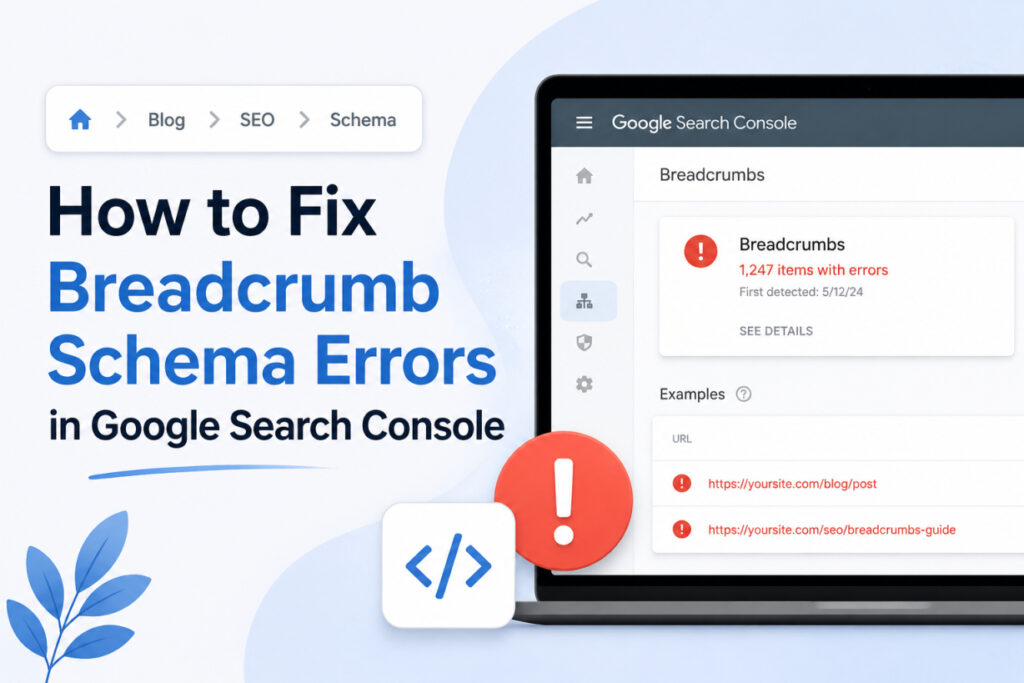
You open Google Search Console. You see a bright red warning or a yellow alert next to “Breadcrumbs.” Your stomach drops a little.
Is this hurting your rankings? Did something break across your entire site? Do you need to call a developer right now?
Take a breath. I have fixed breadcrumb errors on dozens of websites. Here is the truth: most of these errors are incredibly easy to fix once you know what Google is actually asking for.
The real problem is that Google Search Console’s (GSC) error messages are short. They do not explain themselves well. So, people guess. And guessing wastes your valuable time.
This guide removes all the guesswork. I will show you exactly what each error means, why it happens, and how to fix it. No developer required.
What Breadcrumb Schema Actually Does
Let’s start simple.
Breadcrumb schema is a specific block of code placed on your page. It tells search engine crawlers the exact categorical path to that page. It looks something like this:
Home > Shoes > Running Shoes > Men's Trail Runners
You have likely noticed this trail show up in desktop search results before, sitting right next to your site’s favicon. It gives users immediate context about where a page lives on your site before they even click.
A Quick Side Note on Mobile Search:
Google shifted how it displays search snippets on mobile devices, removing the visual breadcrumb trail from mobile layouts. Mobile users now primarily see just the domain name. However, the underlying schema code matters just as much as it always did. The markup itself remains a core requirement. It helps Google map your internal linking structure, distribute crawl budget, and establish site architecture. This change is purely visual on mobile layouts, so do not skip your breadcrumb markup.
The code itself is written in a structured data format called JSON-LD. Here is what a perfectly valid, error-free breadcrumb schema code block looks like:
JSON
{
  "@context": "https://schema.org",
  "@type": "BreadcrumbList",
  "itemListElement": [
    {
      "@type": "ListItem",
      "position": 1,
      "name": "Home",
      "item": "https://example.com/"
    },
    {
      "@type": "ListItem",
      "position": 2,
      "name": "Shoes",
      "item": "https://example.com/shoes/"
    },
    {
      "@type": "ListItem",
      "position": 3,
      "name": "Running Shoes",
      "item": "https://example.com/shoes/running/"
    }
  ]
}
Look closely at that third and final item in the code block. Notice how it includes an "item" URL field, just like the steps before it?
This is where many website owners trip up. In standard website layout design, the final breadcrumb text on a page shouldn’t be a clickable link. Why link to a page when the user is already sitting on it?
But Google’s schema parser follows a much stricter rule. If you explicitly list an item inside your structured code array, it needs a valid target URL. If you leave it blank, Google Search Console will flag your page with a warning.
Keep this behavior in mind. It explains the single most common error on this list.
Error #1: “Missing Field ‘item'”
This is the error that shows up most frequently in Search Console reports. It simply means Google found a step inside your breadcrumb code, but the web address (URL) mapped to that step is completely blank or missing.
As we just discussed, this almost always happens on the very last breadcrumb item in your trail. Your content management system (CMS) theme or an SEO plugin might strip out the link from the final crumb to prevent a self-linking visual loop for human visitors. While that makes total sense for user experience, it breaks Google’s backend data layout rules.
The Broken Code Pattern:
JSON
{
  "@type": "ListItem",
  "position": 3,
  "name": "Running Shoes"
  // Error: The "item" property line is completely missing here
}
How to Fix It:
You must ensure your template code outputs a full, absolute web address for every single step in your trail. This includes your homepage, every category level, and the final page destination.
Always use the complete address, starting with https://. Do not use relative shortcut links like /shoes/. Google wants the entire destination URL explicitly written out.
If tracking down these missing URLs across different page templates feels overwhelming, you can use a free Breadcrumb Schema Generator to handle the heavy lifting. A generator instantly maps the correct absolute canonical URLs to every single step—including the final item. This cleans up your code block and returns a flawless green status in Search Console.
Error #2: Broken Position Numbers
Every single breadcrumb item needs an assigned sequential step number. Position 1 is always your “Home” page. Position 2 is the next subfolder level down. Position 3 follows right after.
These position numbers must run in a perfect consecutive order. They must start at 1, they cannot skip numbers, and they cannot contain duplicates. This is a hard technical requirement, not a loose suggestion.
How Position Numbers Usually Break:
Imagine your website builds its breadcrumb code dynamically based on your product category assignments. A store administrator logs in and completely deletes an outdated product subcategory folder from the main navigation.
If the code generating your background schema doesn’t automatically adapt to recalculate the steps, your position numbers might jump from 1, 2, straight to 4.
[Position 1: Home] ---> [Position 2: Gear] ---> [MISSING STEP] ---> [Position 4: Shoes]
Google’s structural parser will look at that numerical gap, reject the markup, and throw a position property error.
This happens all the time on e-commerce stores or large blogs with thousands of deep category pages. If your breadcrumbs are written by hand, or handled by an inflexible code script, one tiny change to your site hierarchy can accidentally break the numbering sequence across hundreds of pages simultaneously.
How to Fix It:
You need to inspect the counting loop logic inside your site’s template files to ensure that numbers count upward consecutively without gaps.
If you do not want to risk editing raw theme loop files, plugging your structure into an online breadcrumb schema generator is the safest alternative. It automatically outputs a clean JSON-LD string with flawless, sequential numbering that guarantees your positions align perfectly with Google’s indexing rules.
Error #3: Duplicate Breadcrumb Code Blocks
Sometimes a page ends up hosting two completely separate blocks of breadcrumb schema at the exact same time.
This happens far more often than you might think. You install a new, robust SEO plugin to handle your meta descriptions, and it automatically starts injecting breadcrumb schema into your pages. Meanwhile, you forget that your current website theme already has its own built-in structured data script running in the background.
Now, you have two different BreadcrumbList code objects fighting for search engine attention on a single URL. Google does not always throw a clean, labeled error for this in your dashboard. Instead, it might simply pick one randomly, get confused, or choose to ignore both blocks completely—stripping away your rich snippets entirely.
How to Diagnose and Fix It:
Open your affected page in a web browser, right-click, and select View Page Source. Alternatively, open the URL Inspection tool in GSC and check the rendered HTML output.
Search the page text for the phrase "BreadcrumbList". If it appears more than once on a single page, you have a duplicate conflict.
The fix is straightforward: pick one tool to handle the job. Either disable the breadcrumb feature inside your theme options, or toggle off the breadcrumb settings within your SEO plugin. Completely remove the duplicate version rather than trying to patch them together.
Error #4: Your Schema Doesn’t Match What Users See
This issue is incredibly sneaky. Search Console might not flag this as an obvious syntax error in your enhancements report, but it still directly violates Google’s core quality guidelines.
Google expects your background schema code to perfectly reflect the identical navigation path a real user reads on their physical screen. You are not allowed to invent hidden steps in the code or show paths that diverge from reality.
| Visual Trail on Screen | Code Payload path | Status |
| Home > Electronics > Laptops | Home > Electronics > Laptops | Valid (Perfect Match) |
| Home > Electronics > Laptops | Home > Electronics > Computers > Laptops | Violation (Mismatched Trail) |
If Google’s validation bots detect a clear mismatch between your visible text headings and your hidden code strings, your rich results can be quietly suppressed without a direct warning message. In repeated or severe cases of mismatching data, it can even trigger a structured data manual action against your domain.
How to Fix It:
Audit your core page templates. Confirm that the exact names, labels, and sequential categories displayed in your human-facing breadcrumb menu align word-for-word with the data arrays inside your JSON-LD scripts.
Error #5: Google Can’t Find Your Schema At All
Sometimes, Search Console reports that zero breadcrumb items were detected on a page. Yet, when you look at your template files by hand, you can clearly see your code blocks sitting right there.
This is rarely an issue with your actual schema coding syntax. It is almost always a timing or visibility problem. Common causes include:
- JavaScript Rendering Latency: Your JSON-LD is generated dynamically through custom JavaScript framework files, and it finishes loading after Google’s initial crawl bot finishes scanning the raw page source.
- Script Tag Typo: There is a tiny character typo inside your opening script declaration tag, such as writing
<script type="application/ld-json">(missing the second token dot). If the tag is wrong, browsers and bots treat it as plain text and skip processing it. - Hidden Containers: The schema code block is wrapped inside an aggressive
noscripttag or conditional visibility container that stops web crawlers from rendering the text the same way a browser would.
How to Diagnose It:
Open GSC’s URL Inspection tool, paste your link, and click View Crawled Page. This displays the exact final rendered HTML code that Google captured during its crawl visit.
Search that specific rendered panel for your breadcrumb tags. If the code is missing from that window, your issue isn’t the schema syntax—it is a performance bottleneck with how and when your website loads scripts.
My Step-by-Step Troubleshooting Process
Whenever I encounter a batch of fresh breadcrumb alerts inside a client dashboard, I run through the exact same sequence to isolate and resolve them quickly.
[Isolate Template] ---> [Run Rich Results Test] ---> [Patch Code via Generator] ---> [Deploy & Re-test] ---> [Validate Fix]
Step 1: Find and Isolate the Template
Do not waste time trying to fix thousands of individual product or blog pages one by one. Breadcrumb code is generated by core theme files. If 500 pages are throwing errors, it usually means just one template layout file has a bug. Find that file, fix it once, and the errors will disappear sitewide.
Step 2: Use the Rich Results Test
Take a sample URL from your error report and drop it into Google’s official online Rich Results Test tool. It provides an immediate, live code analysis. It highlights the exact line number and property causing the breakdown.
Step 3: Patch or Replace the Code
If the error is a quick comma typo, patch it on your site. If your current theme script is convoluted or tough to modify, clear out the broken script block entirely.
Open a Breadcrumb Schema Generator, type in your preferred structured settings, and let it compile clean code for you. Copy that fresh code block and paste it directly into your primary theme file header.
Step 4: Validate Your Local Update
Before closing your code files, copy your newly updated template string and paste it into the “Code” tab inside the Rich Results Test tool. Ensure it gives you a clean, bright green “Valid” checkmark.
Step 5: Notify Google Search Console
Go back to your Search Console dashboard, open up the specific breadcrumb issue report, and click the blue Validate Fix button. This alerts Google that your code has been updated and queues your pages for an automated recrawl.
Which Testing Tool Should You Trust?
A common source of confusion is that the Google Search Console Enhancements report, the live Rich Results Test, and external schema validator tools do not always display the exact same data simultaneously.
This happens because they are built to check entirely different things:
- The Rich Results Test: This tool checks a very specific question: Does this exact code block qualify for Google’s rich search results right now? This is the absolute source of truth for fixing GSC errors because it matches Google’s unique display guidelines.
- Generic Schema Validators: These tools check whether your code complies with the general structural formatting rules of Schema.org. It is a much looser standard. Your code can easily pass a generic layout validator but still fail Google’s stricter requirement parameters.
- GSC Enhancements Report: This dashboard is historical data. It displays a snapshot of what your site looked like the last time Google crawled your pages, which could be several days or weeks ago. Never expect this dashboard to update the instant you change a line of code on your server.
Be Patient After You Click Validate
Once you click that “Validate Fix” button, your work on the server is officially done. The status column inside Search Console will change to Started.
Now, you just need to wait. Full validation is not instantaneous. Google’s automated systems will process a quick sample of your pages to confirm the update works, and then add the remaining affected URLs to a global recrawling queue.
Depending on your website’s total page count and your standard crawl frequency, this validation process can take anywhere from a few days to a couple of weeks to cycle through completely.
Avoid the temptation to keep changing or tweaking your template code while the validation status reads “Started.” Constantly changing your script blocks mid-validation will restart the evaluation loop, extending your wait time. Let the queue complete its crawl naturally.
The Bottom Line
Breadcrumb warnings look intimidating when they arrive in your email inbox, but they almost always boil down to a familiar checklist of minor structural issues: a missing destination link, broken position sequences, plugin conflicts, or minor comma typos.
Approach them systematically: find the core template, test a sample page using the Rich Results Test, drop in valid markup using an automated generator, and submit your validation request to Google. Keeping your schema markup clean ensures search engines index your site layout perfectly, preserving your rich snippet visibility over the long haul.
FAQs
1. Will fixing these breadcrumb errors immediately boost my rankings?
Not exactly. Fixing structural data errors won’t suddenly jump your page from page 2 to position 1. However, it does bring back your rich snippets (the clean navigational trail in search results). Rich snippets make your search listings look highly professional, which directly boosts your organic click-through rate (CTR). Plus, error-free code makes it much easier for Google to crawl and index your internal site architecture efficiently.
2. I fixed the code, but Search Console still shows the red error. Did I do something wrong?
Don’t panic—this is completely normal. The main GSC dashboard does not update in real time; it relies on historical crawl data. Even after you hit Validate Fix, it can take anywhere from a few days to two weeks for Google to recrawl all the affected URLs and clear the warnings from your report. If you want instant peace of mind, run a single URL through the live Rich Results Test tool. If it shows a green checkmark there, your fix is working perfectly.
3. Can I just use hidden schema code without showing physical breadcrumbs on the page?
You can technically write the code that way, but it is a violation of Google’s Structured Data Quality Guidelines. Google explicitly states that your background schema should accurately mirror what a human visitor can see on the screen. If their validation bots notice you are feeding search engines structural path data that is completely hidden from actual users, they may strip your rich snippets entirely or flag your domain for a structured data manual action.
4. What should I do if the error says missing field “name” instead of “item”?
While a missing item field means a URL is missing, a missing name field means your code is missing the actual text label for that specific step. This usually happens when a page sits inside an uncategorized folder, or if your site’s automated schema script pulls data from an empty title tag. To fix it, ensure every single category level in your breadcrumb path has a clear, text-based headline or navigation label assigned to it.
5. Can I just turn off breadcrumb schema entirely to make the errors disappear?
Yes, removing the schema code will make the errors vanish from your dashboard, but it’s a classic case of cutting off your nose to spite your face. Disabling it means you permanently lose out on rich snippet displays in search results and make it harder for search crawlers to understand your internal linking structure. Taking five minutes to patch the code with a generator is always a better long-term SEO play than throwing away the structural data entirely.