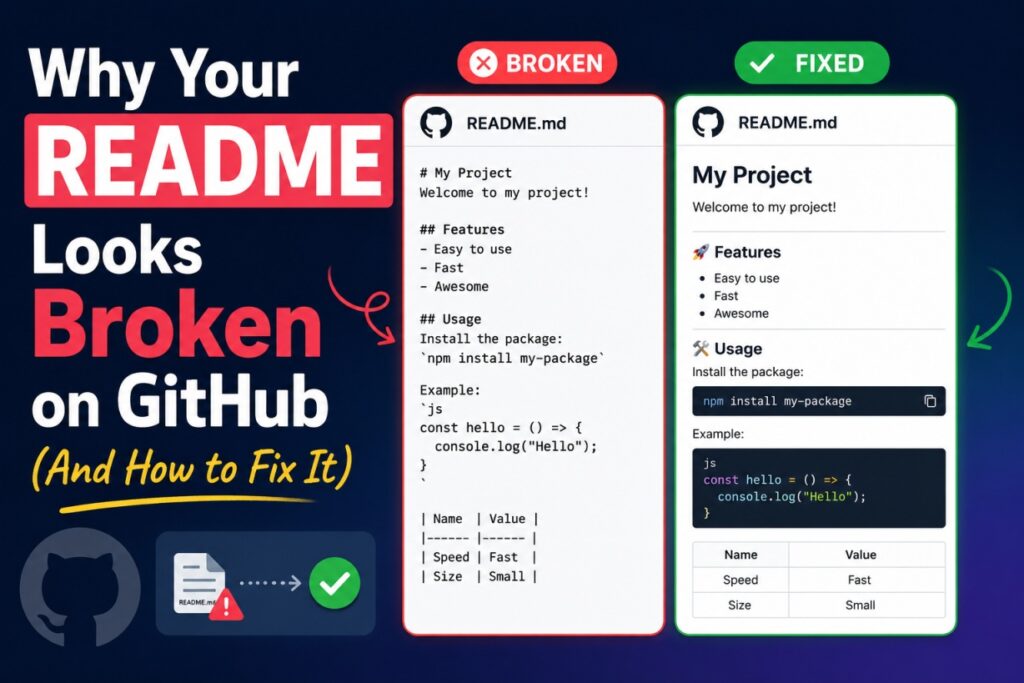
Last year, I pushed a README for a CLI tool I had been building for three weeks. The local preview in VS Code looked exactly how I wanted it—clean tables, color-coded code blocks, and properly nested lists.
I pushed the code, opened the repository on GitHub from my phone, and my heart sank. The beautiful tables had collapsed into a chaotic line of raw pipe characters. The installation steps were mashed into a single, unbroken paragraph, and the syntax highlighting had vanished completely.
I had tested everything except the one renderer that actually mattered.
This is more common than most developers care to admit. The root cause is almost always the same: your local text editor is lying to you. It is not doing it maliciously—it is just far more forgiving than GitHub’s production environment.
Once you understand exactly where that parsing gap exists, fixing your broken documentation becomes entirely mechanical. This comprehensive guide walks through the top 10 rendering failures, why they happen under the hood, and exactly how to correct them.
Why Local Previews and GitHub Don’t Agree
There is a widespread assumption in the engineering community that Markdown is Markdown—that the exact same syntax renders identically everywhere. It does not, and the reason comes down to the underlying parsers.
Markdown was never formally standardized during its early years. John Gruber’s original 2004 specification left enough structural ambiguity that different tools made vastly different decisions about edge cases. Over time, a patchwork of incompatible parsers emerged across the web. One parser would treat a tab as four spaces, while another would not; one would require a blank line before a list, while another did not care at all.
CommonMark was created in 2014 specifically to fix this fragmentation. It introduced an unambiguous, rigorously tested specification for Markdown that eliminated most of these edge cases. It is exceptionally strict by design, aiming to make Markdown highly predictable rather than lenient.
GitHub Flavored Markdown (GFM) is a strict superset of CommonMark. Published by GitHub in 2017, GFM builds directly on top of CommonMark as its base. It adds functional extensions like tables, task lists, strikethrough, autolinked URLs, and issue references, but it inherits all of CommonMark’s rigid structural rules. It does not relax any restrictions.
Your editor’s Markdown preview, in most cases, runs an entirely different parser. VS Code uses markdown-it. Other popular apps like Typora, Obsidian, or iA Writer all rely on their own custom implementations.
These local parsers are explicitly built for user convenience. They are fine-tuned to guess what you probably meant, silently forgiving structural mistakes that GFM would reject outright.
The practical result is a false sense of security. You write a README, your editor’s lenient parser renders it cleanly, and you push it assuming it is correct. GitHub’s strict GFM-compliant parser then encounters the same file and breaks it because it enforces the actual rules your editor quietly waived.
The 10 Most Common Markdown Rendering Failures
1. Missing Blank Lines Before and After Lists
If there is one absolute rule to internalize before anything else, it is this: block-level elements require an empty line separating them from surrounding paragraphs.
A lenient parser sees a hyphen on a new line and instantly builds a list. CommonMark rules state that a list immediately following a paragraph without a blank line can be interpreted as a lazy continuation of that paragraph. GitHub will often merge those bullet points directly into the sentence text above them.
Broken List Structure
Markdown
To get started, install the dependencies:
- Node.js
- npm
- Git
Fixed List Structure
Markdown
To get started, install the dependencies:

- Node.js
- npm
- Git
2. Missing Blank Lines Around Fenced Code Blocks
The exact same whitespace rule applies to your code fences. If a code block is jammed right against a preceding paragraph or a following sentence, the parser fails to initialize the block container.
Without an empty line, GitHub treats the opening triple backticks as part of the paragraph text. The backticks will display as raw, unformatted characters on your repository page, completely ruining the layout.
Broken Code Block Separation
Markdown
Run the setup script in your terminal:
```bash
./setup.sh
#### Fixed Code Block Separation
```markdown
Run the setup script in your terminal:

```bash
./setup.sh
---

### 3. Headings Omitting the Mandatory Space Character
Headings form the visual hierarchy of your repository. When they fail to render, your entire layout collapses into unreadable blocks of text.

The most common reason a heading breaks on GitHub is the omission of a single space character. Many local editors will happily render `#Heading 1` as a top-level title, but GFM strictly requires a space between the final hash symbol and the beginning of your text. Without it, GitHub reads the line as a plain text string or an accidental hashtag.

#### Broken Heading Syntax
```markdown
#My Project Overview
This is a comprehensive open-source library.
##Key Features
Fixed Heading Syntax
Markdown
# My Project Overview

This is a comprehensive open-source library.

## Key Features
4. The Language Tag Space Bug
Fenced code blocks have a specific failure mode on GitHub that frequently evades local preview windows: the inline language tag space bug.
The language identifier must directly follow the opening triple backticks without any intervening spaces. Adding a single space between the backticks and bash or json causes GitHub to ignore the language tag completely. The block then renders as dull plain text instead of syntax-highlighted code.
Broken Language Tag
Markdown
``` bash
npm install my-utility
```
Fixed Language Tag
Markdown
```bash
npm install my-utility
```
5. The Indented Code Block Trap
While using a four-space indentation to create a code block works in isolated contexts, it frequently breaks inside list items or blockquotes.
In nested environments, indentation is already structural. Four spaces might signal a nested list item to GFM rather than an intentional code block. Fenced blocks using triple backticks work reliably everywhere, so you should use them exclusively and abandon four-space code blocks entirely.
Broken Indented Code inside a List
Markdown
* Step 1 is simple:
    echo "Do not use spaces for blocks here"
Fixed Fenced Code inside a List
Markdown
* Step 1 is simple:

  ```bash
  echo "Use triple backticks instead"
---

### 6. Asymmetric Table Layouts and Missing Delimiters
GFM table syntax looks simple on the surface, but it enforces several rigid requirements that local editors rarely mention. Your local editor's visual alignment means absolutely nothing to GitHub.

To ensure your tables never break on a remote repository, every row should begin and end with an explicit pipe character. Additionally, the delimiter row (the line of dashes) must come immediately after the header row with at least one hyphen per cell. Column alignment is explicitly controlled using colons within that second separator row.

#### Broken Table Layout
```markdown
Name | Role | Status
-- | -- | --
Alice | Engineer | Active
Bob | Designer | Inactive
Fixed Table Layout
Markdown
| Name  | Role      | Status   |
|-------|-----------|----------|
| Alice | Engineer  | Active   |
| Bob   | Designer  | Inactive |
7. Ambiguous List Indentation and the Ordered Sequence Quirk
CommonMark’s list indentation rules are mathematically precise. Sub-items must be indented relative to the parent item’s content, not the bullet character itself. Tabs are highly dangerous because they expand to varying widths depending on the environment; always configure your editor to map tabs to spaces.
Furthermore, note that GitHub always forces a sequential numerical output regardless of what specific numbers you write in your raw file. If you write 1., 3., 5., GitHub will still render it as 1., 2., 3.. To prevent configuration confusion, always start with 1. and increment sequentially in your source file.
Broken Ambiguous Indentation
Markdown
- Item one
   - Broken sub-item
- Item two
Fixed Precise Indentation
Markdown
- Item one
  - Fixed sub-item
- Item two
8. Invisible Trailing Whitespace and Disappearing Line Breaks
In standard writing, you press return to start a new line. In Markdown, hitting return a single time does not produce a visual line break; GFM joins those single-spaced lines together into a single continuous paragraph.
To force a true line break without starting a new paragraph container, you must append two trailing spaces to the end of the line. However, many modern editors automatically strip trailing whitespace upon saving the file, breaking your line breaks on GitHub. For critical line structures like metadata blocks or badges, use the explicit HTML <br> tag instead.
Broken Line Break Flow
Markdown
Project Maintainer: Jane Doe
Email: [email protected]
License: MIT
Fixed Line Break Setup
Markdown
Project Maintainer: Jane Doe<br>
Email: [email protected]<br>
License: MIT
9. Relative Pathing, Case Sensitivity, and the Camo Proxy
When assets like architectural diagrams or project logos fail to load, it usually stems from pathing errors. Image paths in Markdown must be resolved relative to that specific file’s location within the repository tree, meaning absolute local drive paths will fail completely.
Additionally, Windows and macOS are largely case-insensitive when reading local disk files, but GitHub’s production rendering environment runs on case-sensitive Linux servers. If your file extension casing diverges by a single character (logo.PNG vs logo.png), GitHub will return a silent 404 error.
Furthermore, GitHub routes all external images through an internal anonymity proxy called Camo (camo.githubusercontent.com). If your image URL points to an external server with an invalid SSL certificate or a domain that blocks automated scraping, the proxy will fail to cache the asset.
Broken Asset Path
Markdown

Fixed Asset Path
Markdown

10. Mixing HTML and Markdown Without Line Isolation
GitHub allows you to drop raw HTML tags directly into your documentation for advanced layouts, such as centered elements or building collapsible disclosure dropdowns (<details>). However, blending HTML and Markdown requires absolute precision.
When you open an HTML block element like a <div> or a <details>, the GFM parser completely stops processing Markdown syntax inside that container until it registers the corresponding closing HTML tag. To fix this, you must leave a blank line between the open HTML tag and the inner Markdown text to act as a toggle switch, telling the GFM parser to resume processing Markdown rules.
Broken Embedded Markdown
Markdown
<details>
<summary>Installation Instructions</summary>
**Step 1:** Run the script setup.
</details>
Fixed Embedded Markdown
Markdown
<details>
<summary>Installation Instructions</summary>

**Step 1:** Run the script setup.

</details>
Catching Formatting Bugs Before Pushing Code
Fixing syntax issues by running a repetitive cycle of git commits and pushes is an absolute waste of development time. It leaves your project history cluttered with embarrassing messages like “fix readme layout” or “test table styling.” To break this loop, you need to implement automated validation directly into your local engineering workflow.
Leverage a Local Linter
Install a markdown linter like markdownlint as a CLI tool or a local editor extension. It programmatically checks for structural errors—such as missing block spacing, inconsistent heading levels, and incorrect table layouts—before the file ever leaves your disk.
Normalize via an Online Formatter
One habit that has saved me more broken commits than I can count is running the raw file through a dedicated Markdown Formatter before committing. Utilizing an online platform allows you to instantly standardize your document’s structural architecture.
It programmatically injects mandatory block-level spaces, realigns asymmetric table pipes, flushes out invalid trailing whitespaces, and normalizes tab indentation to clean spaces. This step completely eliminates the hidden syntax anomalies that local preview screens intentionally conceal from you.
Query GitHub’s Official Markdown API
GitHub exposes its actual production rendering engine via a public API endpoint. You can send your raw local Markdown text straight to this endpoint to preview the exact HTML output that will display on your repository page.
You can test your local files by executing this command in your terminal:
Bash
curl -X POST https://api.github.com/markdown \
  -H "Content-Type: application/json" \
  -d '{"text": "# Hello World", "mode": "gfm", "context": "username/repo"}'
Setting the "mode" key to "gfm" and supplying your repository path ensures that all platform-specific extensions, user mentions, and issue numbers are evaluated exactly as they will be on production servers.
An Open-Source Checklist for Flawless READMEs
Before you tag your next release or share your project on community channels, run through this definitive structural checklist:
- Verify Block Isolation: Ensure there is at least one full blank line before and after every single header, code block, table, and list structure.
- Audit Header Spaces: Confirm that every hash symbol (
#) is separated from the heading title text by a literal space character. - Secure Table Elements: Check that every row begins and ends with an explicit pipe character, and that the separator row contains no empty cells.
- Convert Asset Paths: Ensure all image links use repository-relative paths and match the lower- or upper-case spelling of your filenames precisely.
- Isolate HTML Content: Keep open HTML tags completely separated from inner Markdown formatting using distinct empty lines.
- Eliminate Tabs: Convert all internal layout and list indentations from tab characters to standard spaces.
The README Is Part of Your Codebase
As developers, we thoroughly scrutinize our application code before shipping it to production. We run unit tests, audit dependencies, and analyze system errors carefully. Yet, the documentation often gets treated as an afterthought—written quickly, previewed briefly in a lenient editor, and pushed blindly.
Your README is the literal front door of your open-source application. It is the first artifact a user, contributor, or technical recruiter interacts with. A broken table, missing code highlighting, or an unformatted wall of text sends an immediate signal about a project’s overall attention to detail before anyone has read a single line of your actual code.
The strict rules governing GitHub Flavored Markdown are not arbitrary limitations. They exist to eliminate layout ambiguity across different systems. By mastering these structural details and implementing automated formatting tools, you can guarantee that your project looks just as professional and polished to the rest of the world as it does on your local machine.