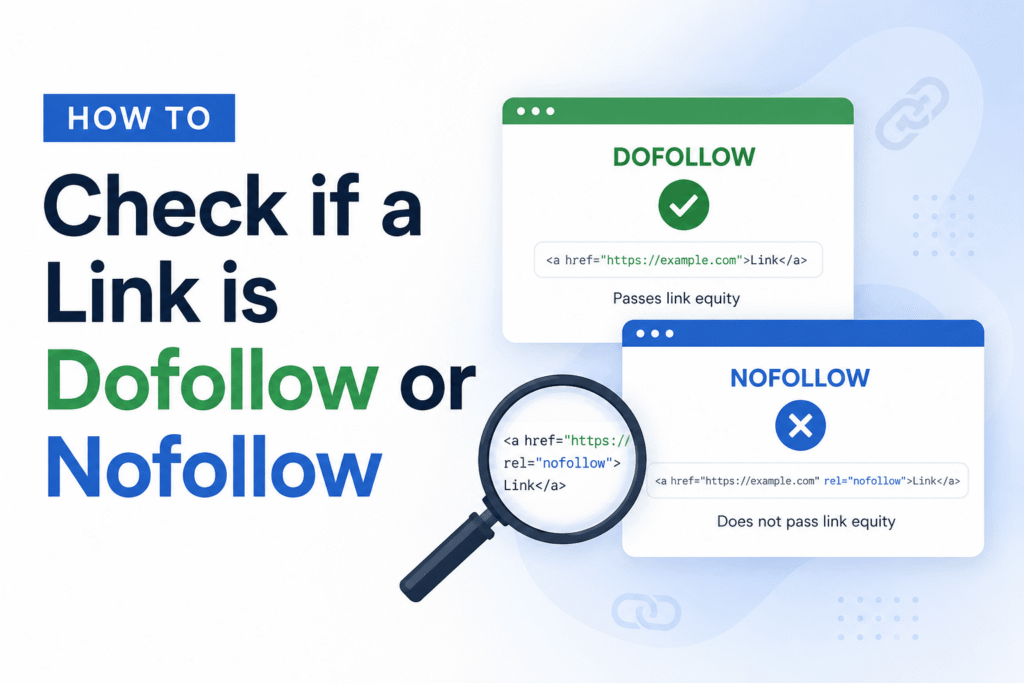
Not all backlinks are equal. A dofollow link passes ranking value to the page it points to. A nofollow link doesn’t. Knowing which one you’re dealing with tells you exactly how much SEO value a link is really giving you.
Here’s how to check, in under a minute.
What Are Dofollow and Nofollow Links?
Think of a link as a vote. When one site links to another, it’s saying, “I trust this page enough to send my visitors there.”
By default, every link is dofollow. Search engines crawl it and pass ranking value to the page it points to. No special code is needed. This is just the default.
Here’s a normal dofollow link:
<a href="https://example.com">Example Site</a>
No rel attribute at all. That’s what makes it dofollow.
A nofollow link adds one small instruction that tells search engines not to pass ranking value through it:
<a href="https://example.com" rel="nofollow">Example Site</a>
People can still click it. Search engines just won’t treat it as a trust signal.
Why This Matters for SEO
A dofollow link from a trusted site works like a strong recommendation. It can genuinely help you rank higher.
Nofollow links don’t pass that same ranking signal, but they’re not worthless. They still bring real visitors to your site, and they can lead other people to discover your content and link to it later.
A backlink profile made entirely of dofollow links can actually look suspicious to Google, since natural link profiles are usually a mix of both. Chasing only dofollow links can work against you.
A real-world example. Say a blog offers you a guest post for $150 and promises a “high-authority backlink.” If that link turns out to be nofollow, you’re mostly paying for exposure, not ranking power. That’s not necessarily a bad deal, but you should know which one you’re getting before you pay.
How to Check a Link: 4 Methods
Method 1: Right-Click and Inspect
Best for checking a single link.
- Right-click the link.
- Click “Inspect” or “Inspect Element.”
- Your browser opens developer tools and highlights the exact HTML.
- Look inside the
<a>tag forrel="nofollow",rel="sponsored", orrel="ugc".
None of those present? The link is dofollow.
Method 2: View Page Source
Best for scanning a whole page at once.
- Right-click anywhere on the page, but not on a link.
- Click “View Page Source,” or press Ctrl+U (Windows) or Cmd+Option+U (Mac).
- Press Ctrl+F (or Cmd+F) and search for “nofollow.”
- Repeat the search for “sponsored” and “ugc.”
Every match is a link that isn’t passing full ranking credit.
Method 3: Browser Extensions
Best if you check links regularly. Extensions like NoFollow or MozBar highlight nofollow links automatically as you browse, usually with a colored border. No inspecting, no searching. You just see it as you go.
Method 4: Use an Online Dofollow/Nofollow Link Checker
Best for checking many links at once, or getting a clean report to share with a client.
You paste in a URL, and the tool scans the entire page for you. Within seconds, it lists every link and tells you which ones are dofollow, nofollow, sponsored, or UGC.
This online dofollow/nofollow link checker is especially useful for checking a guest post before you pay for it, auditing your own backlinks after a campaign, or seeing how a competitor builds their links. It’s the fastest of all four methods, and it doesn’t require touching any code.
Google’s Link Attributes: nofollow, sponsored, and ugc
In 2019, Google added two attributes alongside nofollow. Using the right one keeps your site’s linking practices clean and easy for Google to interpret correctly.
rel=”nofollow”
Use this for any link you don’t fully trust or don’t want to vouch for.
<a href="https://example.com" rel="nofollow">Untrusted Link</a>
rel=”sponsored”
Use this for paid links: ads, affiliate links, or any link tied to a sponsorship deal.
<a href="https://example.com" rel="sponsored">Sponsored Content</a>
If you run affiliate links and haven’t been tagging them this way, fix that. Google expects paid links to be labeled, and skipping this can raise red flags during a manual review.
rel=”ugc”
UGC stands for user-generated content. Use it for links inside comments, forum posts, or anywhere visitors can post their own content.
<a href="https://example.com" rel="ugc">User Comment Link</a>
You can combine attributes if a link fits more than one category:
<a href="https://example.com" rel="ugc nofollow">User Comment Link</a>
Google treats these as strong hints, not hard rules. Using the correct one still matters, since it tells Google exactly why the link exists.
Common Mistakes to Avoid
Assuming guest posts are dofollow. Many publications automatically nofollow or sponsor-tag author bio links. Check every time. Don’t assume.
Forgetting to tag affiliate links as sponsored. This is a common oversight, and it can look like manipulation even when it’s an honest mistake.
Nofollowing your own internal links out of habit. This isn’t necessary, and it can make it harder for search engines to crawl and understand your site.
Skipping checks after a redesign. Site migrations and CMS updates can quietly strip or add link attributes. Double-check your key pages after any major change.
Best Practices Going Forward
Check your backlinks periodically. Site owners change link attributes over time, sometimes without telling you.
Use the right attribute for the right situation. Mixing up sponsored, ugc, and nofollow sends confusing signals to Google.
Keep a natural balance of dofollow and nofollow links pointing to your site. A varied, natural-looking link profile tends to perform better than one that looks engineered.
If you run outreach campaigns, track which sites gave you dofollow links and which gave nofollow ones. Over time, this shows you which outreach efforts are actually worth repeating.
Checking whether a link is dofollow or nofollow takes less than a minute once you know where to look. Whether you check the code yourself or let a tool sort it out for you, you’ll know exactly what value each link is really giving you.