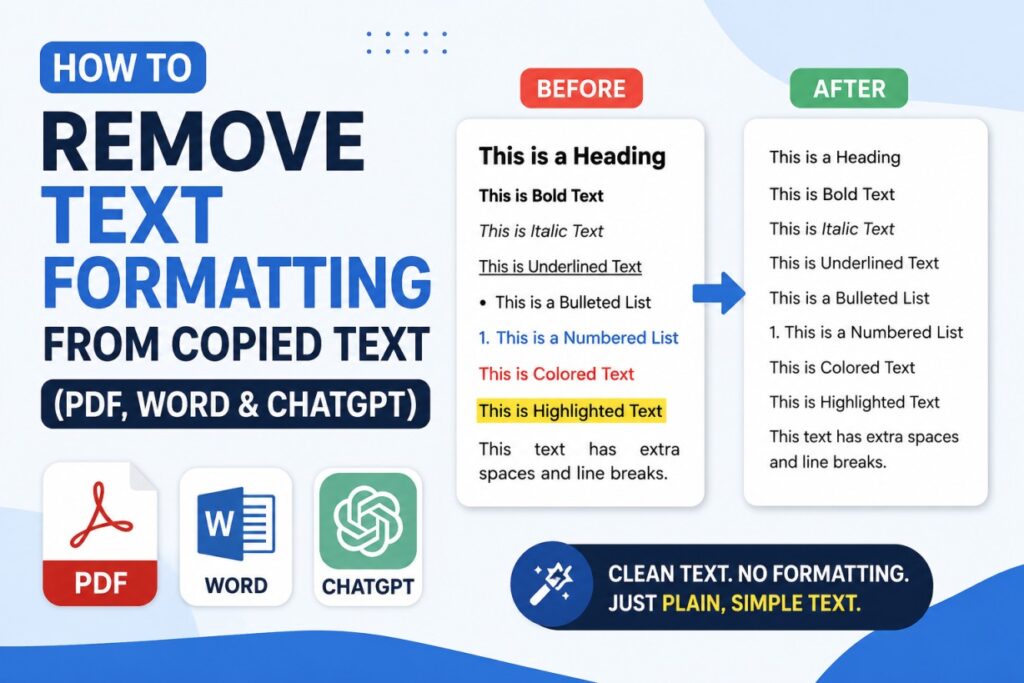
You copy a paragraph from a website, a PDF, or an AI chatbot, paste it into your document — and everything breaks. The font changes size mid-sentence. A gray background box shows up out of nowhere. Random hyperlinks appear underlined in blue. Your carefully built layout is suddenly a mess.
This isn’t bad luck. It’s what happens whenever you copy rich text instead of plain text. Every word you copy from a browser, a PDF reader, or an app like ChatGPT or Word carries invisible formatting instructions along with it — font family, size, color, spacing, even hidden HTML tags. When you paste, all of that comes with it.
The good news: every major platform has a built-in way to strip this out, and once you know where to look, fixing it takes seconds. This guide covers all of them — a one-click online cleaner, keyboard shortcuts, app-specific tools, and fixes for the trickiest edge cases like PDF line breaks and ChatGPT’s gray code-block background.
Quick Reference: The Fastest Fix for Each App
| Where you’re pasting | Shortcut (Windows) | Shortcut (Mac) |
|---|---|---|
| Any app (system-level) | Ctrl + Shift + V | Cmd + Option + Shift + V |
| Google Docs / Sheets / Slides | Ctrl + Shift + V | Cmd + Shift + V |
| Microsoft Word | Ctrl + Alt + V → choose “Unformatted Text” | Cmd + Option + Shift + V |
| Gmail | Ctrl + Shift + V | Cmd + Shift + V |
| Notion | Ctrl + Shift + V | Cmd + Shift + V |
| Slack | Ctrl + Shift + V | Cmd + Shift + V |
If a shortcut doesn’t work in a particular app, skip to the “universal fallback” method further down — it works absolutely everywhere, no exceptions.
Why This Happens: A 30-Second Explanation
When software copies text, it usually copies two versions to your clipboard at once:
- A plain text version — just the raw characters
- A rich text / HTML version — the same characters wrapped in formatting code (fonts, colors,
<a>tags for links,<div>backgrounds, etc.)
Most apps default to pasting the rich version because it “looks nicer” in theory. The problem is that this formatting was designed for the source document, not yours — so instead of blending in, it clashes. Every method below works the same basic way: force the app to use the plain-text version of the clipboard instead of the rich one.
Method 1: The Fastest Way to Clean Text Online
If you’re dealing with text that has multiple formatting issues at once — a mix of bad fonts, random line breaks, and hidden web code — the fastest solution is a dedicated online text sanitizer rather than fumbling with shortcuts one app at a time.
You can use a free, browser-based online text formatting remover tool to clean your text completely with a single click.
Privacy Note: Our tool is a high-quality, client-side utility that runs entirely inside your browser. Your text never leaves your computer or uploads to a server, making it completely safe for confidential work and private data.
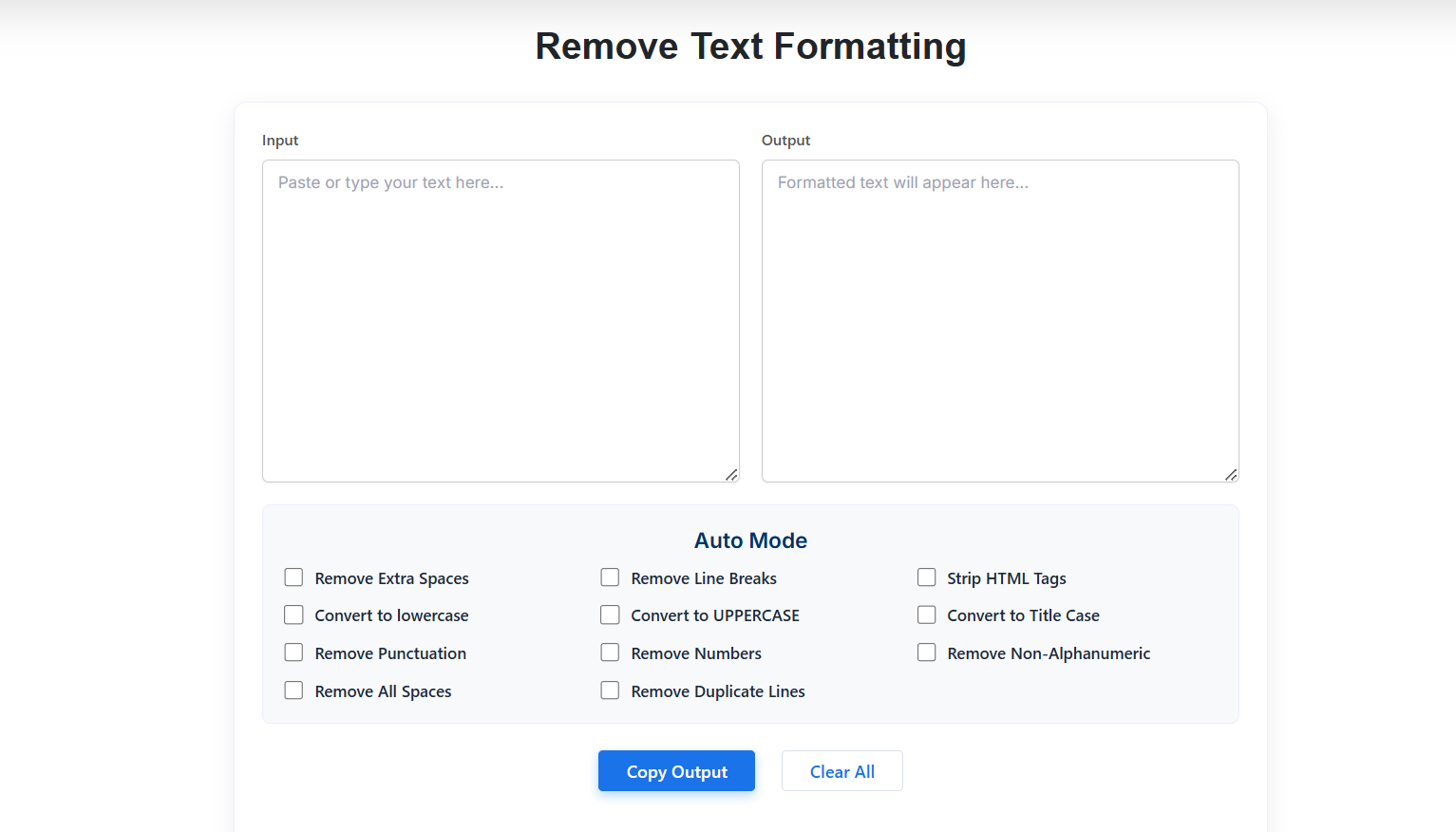
Step-by-step guide to clean your text instantly:
- Copy your text from the source file (PDF, website, or AI tool).
- Paste it directly into the Input box on the left side of the tool.
- Select your cleaning filters from the Auto Mode checkboxes based on what you need to fix.
- The cleaned text instantly appears in the Output box on the right. Click the blue Copy Output button to save it to your clipboard. Click Clear All if you want to start over.
Advanced cleaning features explained: Standard text editors only strip fonts — a proper online tool also handles structural text issues:
- Strip HTML Tags: Cleans up deep code elements, anchor tags, and hidden web styles picked up while scraping or copying from websites.
- Remove Line Breaks & Extra Spaces: Instantly glues broken text back into flowing paragraphs — the perfect fix for jagged text copied from narrow PDF columns.
- Remove Duplicate Lines: Strips repetitive phrases or identical lines of data, which is especially useful for cleaning raw code exports or repetitive AI responses.
- Case Conversion Options: Fixes capitalization errors instantly, with options to convert to lowercase, UPPERCASE, or Title Case.
- Data Stripping Modules: Specialized filters to strip out all numbers, remove punctuation marks, eliminate non-alphanumeric characters, or delete all spaces entirely.
Method 2: The Universal Keyboard Shortcut (Works in Almost Everything)
This is the fastest fix and the one worth memorizing.
On Windows: Copy your text normally (Ctrl + C), click where you want to paste, then press Ctrl + Shift + V. This works in Chrome, Edge, Notion, Slack, Discord, and most modern web apps.
On Mac: The same idea exists as “Paste and Match Style.” Copy with Cmd + C, then paste with Cmd + Option + Shift + V. The pasted text instantly adopts the formatting of wherever you dropped it.
If Ctrl+Shift+V doesn’t do anything in a particular app, that app has likely assigned the shortcut to something else — check that app’s specific method below instead.
Method 3: Fixing Formatting Inside Microsoft Word
Word gives you two different tools depending on whether you’re pasting fresh text or cleaning up something that’s already a mess.
Before you’ve edited anything (best option):
- Paste normally with
Ctrl + V. - A small clipboard icon appears at the bottom-right corner of the pasted text — this is the Paste Options menu.
- Click it (or press
Ctrl) and choose the “Keep Text Only” icon (a plain letter “A”). This strips fonts, colors, and links immediately.
For text that’s already pasted and messy:
- Highlight the affected text.
- Go to the Home tab → Font group.
- Click Clear All Formatting (the “A” with an eraser icon).
- The text resets to your document’s default style instantly.
Pro tip: You can set Word to always paste as plain text by default. Go to File → Options → Advanced → Cut, Copy, and Paste, and change “Pasting from other programs” to “Keep Text Only.” You’ll never have to think about this again.
Method 4: Fixing Formatting in Google Docs
Google Docs is notorious for dragging in hidden tables and background colors from websites and AI tools. Three ways to fix it:
- Instant fix for existing text: Highlight the messy text and press
Ctrl + \(Windows) orCmd + \(Mac). This is Google’s dedicated “clear formatting” shortcut. - Menu method: Highlight the text → Format menu → Clear formatting (bottom of the list).
- Prevent it at the paste step: Copy your source text, then in Docs use Edit → Paste without formatting, or the shortcut
Ctrl + Shift + V/Cmd + Shift + V.
Method 5: Gmail, Outlook, and Email Clients
Email is where formatting problems cause the most damage — mismatched fonts in a professional email look sloppy fast.
- Gmail: Use
Ctrl + Shift + V(orCmd + Shift + Von Mac) when composing. Gmail also has a small “Remove formatting” icon (a letter “T” with an X) in the compose toolbar’s formatting bar. - Outlook (desktop): Use
Ctrl + Alt + Vto open Paste Special, then choose “Unformatted Text.” Alternatively, set Outlook’s default paste behavior under File → Options → Mail → Editor Options → Advanced → Cut, Copy, and Paste. - Outlook (web): Use the universal
Ctrl + Shift + Vshortcut.
Method 6: Notion, Slack, and Chat Apps
Both apps generally respect Ctrl/Cmd + Shift + V. In Notion specifically, if you paste a URL and it auto-converts into a rich embed or bookmark card when you wanted plain link text, press Ctrl/Cmd + Z immediately afterward — Notion will “undo” just the auto-formatting step and leave plain text behind.
Method 7: The Universal Fallback — The Notepad/TextEdit Bounce
If an app doesn’t cooperate with any shortcut, this method works 100% of the time, in any app, on any operating system, because it uses software that is physically incapable of storing rich formatting.
Windows (using Notepad):
- Copy your messy text (
Ctrl + C). - Open Notepad.
- Paste it in (
Ctrl + V). Every font, color, and link disappears instantly. - Select all (
Ctrl + A), copy again (Ctrl + C). - Paste into your final destination — it’s now 100% plain text.
Mac (using TextEdit):
- Copy your text (
Cmd + C). - Open TextEdit and create a new document.
- Important extra step: go to Format → Make Plain Text (or press
Shift + Cmd + T) before pasting — otherwise TextEdit’s rich text mode will preserve some formatting. - Paste (
Cmd + V), then select all and copy again. - Paste into your destination document.
This method is slower than a shortcut, but it’s the one to remember when nothing else works — for example, in older desktop software or unusual custom apps that don’t support standard paste behavior.
Method 8: For Developers — Regex and Find-and-Replace
If you regularly clean up scraped text, exported data, or AI-generated content, keyboard shortcuts only solve half the problem — they remove styling but not structural issues like broken line breaks or repeated blank lines. For that, a find-and-replace tool with regex support (like VS Code, Sublime Text, or Word’s Advanced Find & Replace) is faster:
- Collapse broken PDF line breaks into paragraphs: search
(?<!\.)\n(a newline not preceded by a period) and replace with a single space. - Remove duplicate blank lines: search
\n{3,}and replace with\n\n. - Strip all HTML tags: search
<[^>]+>and replace with nothing. - Trim trailing/leading whitespace per line: search
^\s+|\s+$(with multiline mode on) and replace with nothing.
If you don’t want to touch regex, a browser-based plain-text cleanup tool that runs locally in JavaScript can apply these same fixes with checkboxes instead of code — useful for one-off cleanups without opening a code editor. Just be cautious with any online tool that isn’t explicitly client-side, since some of them upload your text to a server before processing it, which isn’t ideal for confidential content.
Fixing Notorious Edge Cases
The ChatGPT gray background box: This happens because ChatGPT often wraps its answers in code-block-style HTML elements. A plain Ctrl+V paste carries that container straight into your document. Skip the direct paste entirely — use the online cleaner tool (Method 1), the Notepad/TextEdit bounce (Method 7), or your app’s “paste without formatting” shortcut, and the box disappears completely.
Broken line breaks from PDFs: PDFs place text using fixed page coordinates, not flowing paragraphs. Copying a paragraph from a PDF column often produces a jagged mess with a hard line break after every visual line. A plain-text paste alone won’t fix this — you need the “Remove Line Breaks” filter in an online cleaner (Method 1) or a regex pass (Method 8) that specifically merges broken lines back into continuous paragraphs.
Excel/Google Sheets number formatting: Pasting numbers from a website into a spreadsheet sometimes imports them as text rather than numbers (so they won’t sum correctly). Use Paste Special → Values Only in Excel, or Right-click → Paste special → Paste values only in Google Sheets, rather than a standard paste.
Frequently Asked Questions
Does removing formatting also remove hyperlinks?
Yes. Hyperlinks live inside HTML anchor tags. Any plain-text paste method converts a clickable link back into ordinary text (or a plain URL), since the underlying tag is gone.
Will this mess up my paragraph indentation?
It removes the source’s custom indentation and margins, letting the text adopt your destination document’s default alignment — this is usually exactly what you want when merging content from multiple sources.
Is it safe to paste sensitive business text into an online cleanup tool?
Only if the tool explicitly processes everything locally in your browser (client-side JavaScript) rather than uploading text to a server. If a tool doesn’t clearly state this, it’s safer to use the built-in Notepad/TextEdit method instead, since nothing ever leaves your device.
Can I make “paste as plain text” the default everywhere so I never have to think about this again?
Most major apps allow this. Word, Outlook, and many browsers let you set default paste behavior in their settings — check each app’s Options/Preferences menu for “paste” or “clipboard” settings.
Quick Decision Guide
- Text has several issues at once (fonts, line breaks, hidden code)? → Online text cleaner tool (Method 1) — one click fixes everything.
- In a hurry, one paste, formatting is the only issue? → Universal shortcut (Method 2).
- In Word or Google Docs specifically? → Use their built-in Clear Formatting tool (Methods 3–4).
- Shortcut isn’t working / unusual app? → Notepad/TextEdit bounce (Method 7) — always works.
- Text has broken line breaks or repeated junk (e.g., from a PDF)? → Online cleaner tool (Method 1) or regex/find-and-replace (Method 8).
- Doing this constantly? → Change your app’s default paste behavior once, and stop worrying about it forever.